
Coaches · Step-by-step guide
Coach guide: manage lessons, places and hours
After setup, everything you offer lives in two places: Schedule for when you coach, and Account for your lessons, places, payouts and profile. Lessons that are already booked keep the details they were booked with.
Step 1
Find your way around
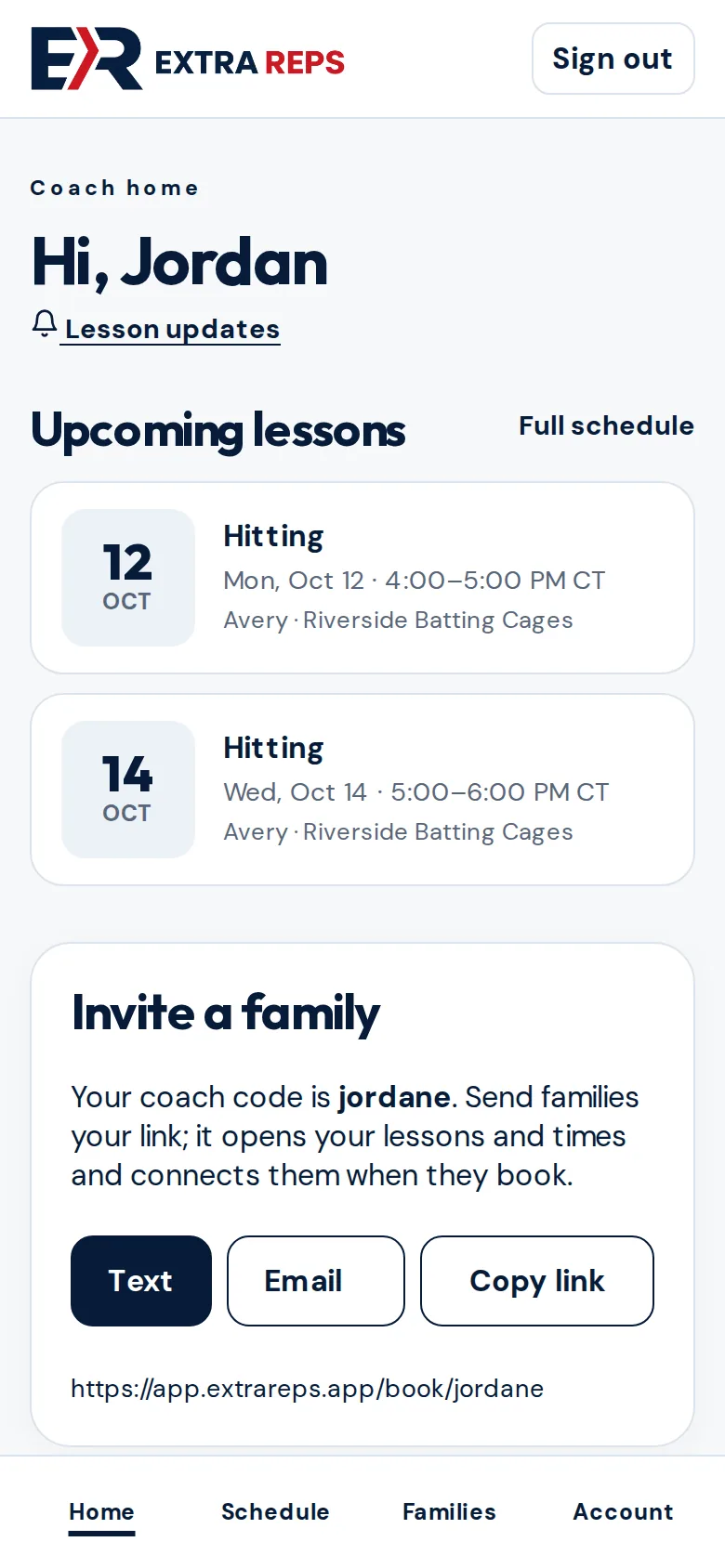
The menu at the bottom takes you to Home (upcoming lessons), Schedule (your calendar and weekly hours), Families and Account.
Step 2
Add or change a lesson
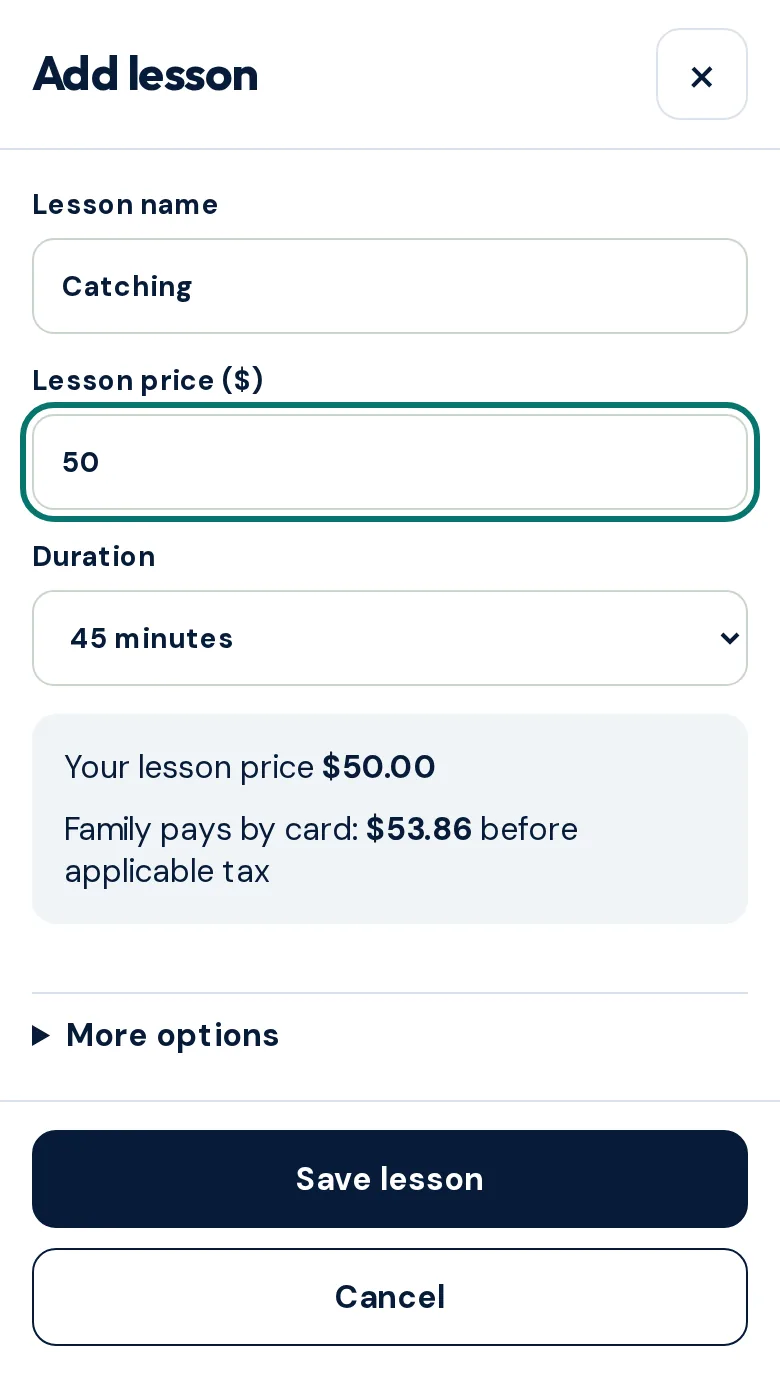
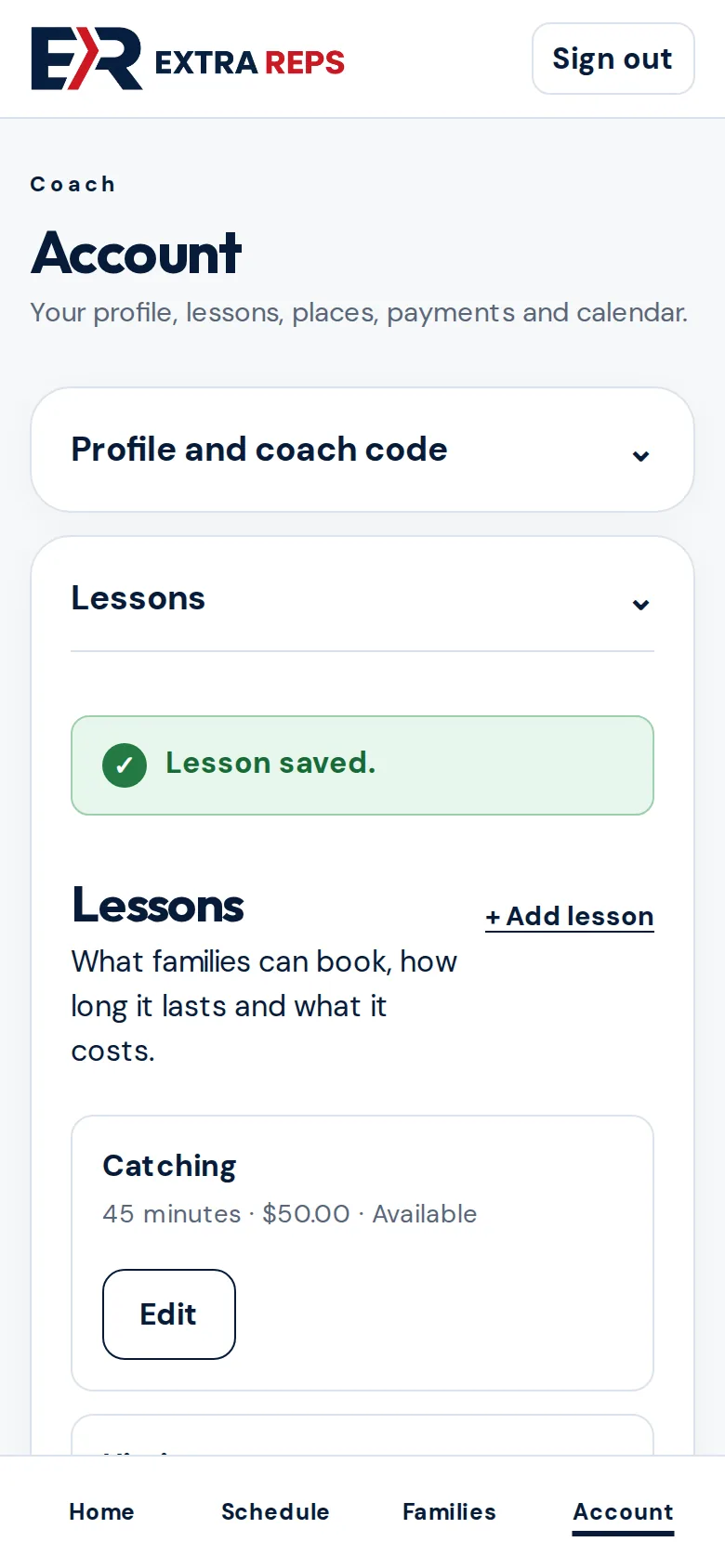
Go to Account and open Lessons. Tap + Add lesson for a new one, or Edit on an existing lesson to change its name, price or length.
The editor shows the card total a family pays. Tap Save lesson.
Step 3
Add or change a place
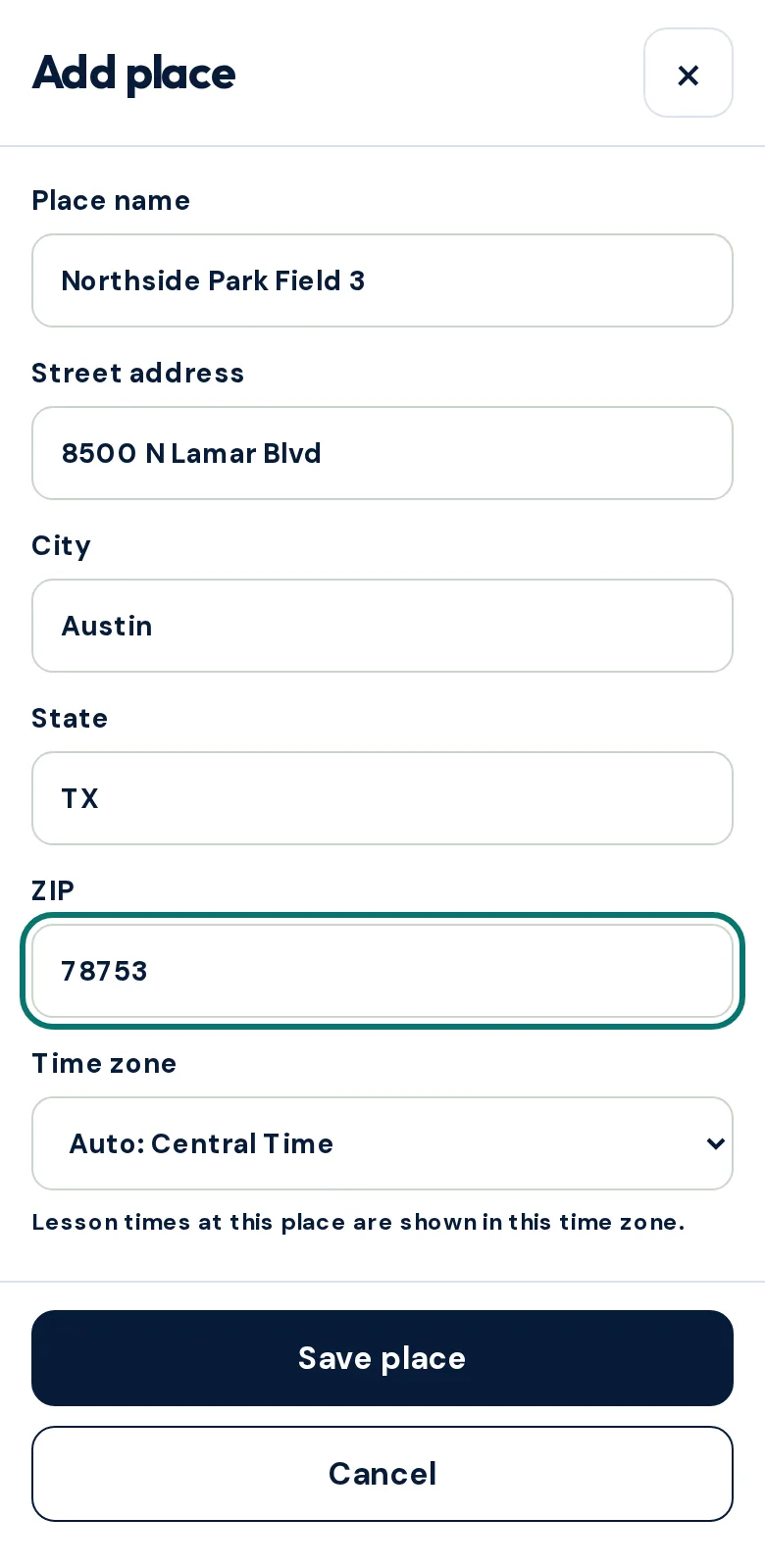
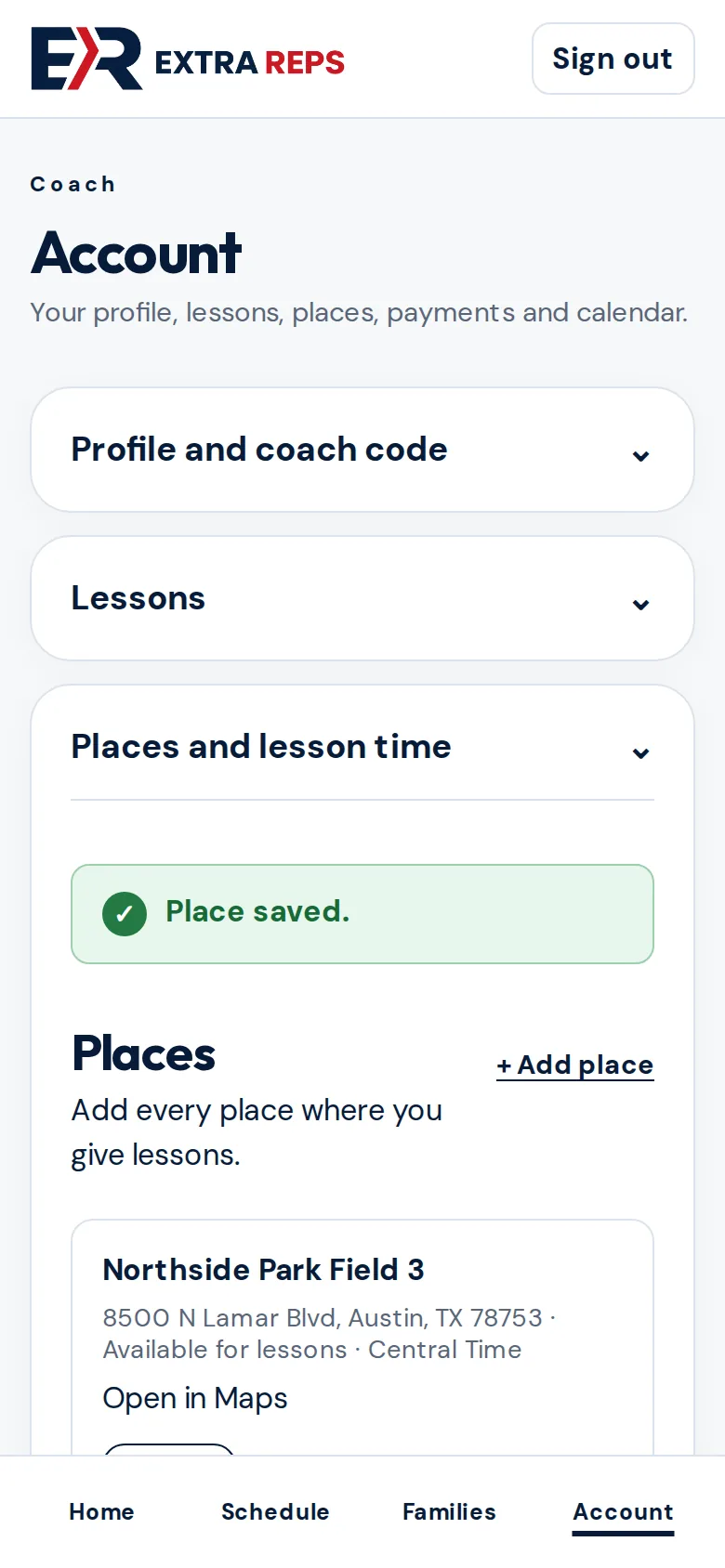
In Account, open Places and lesson time and tap + Add place. Enter the name and address. The time zone is set from the ZIP code. Tap Save place.
Step 4
See your month
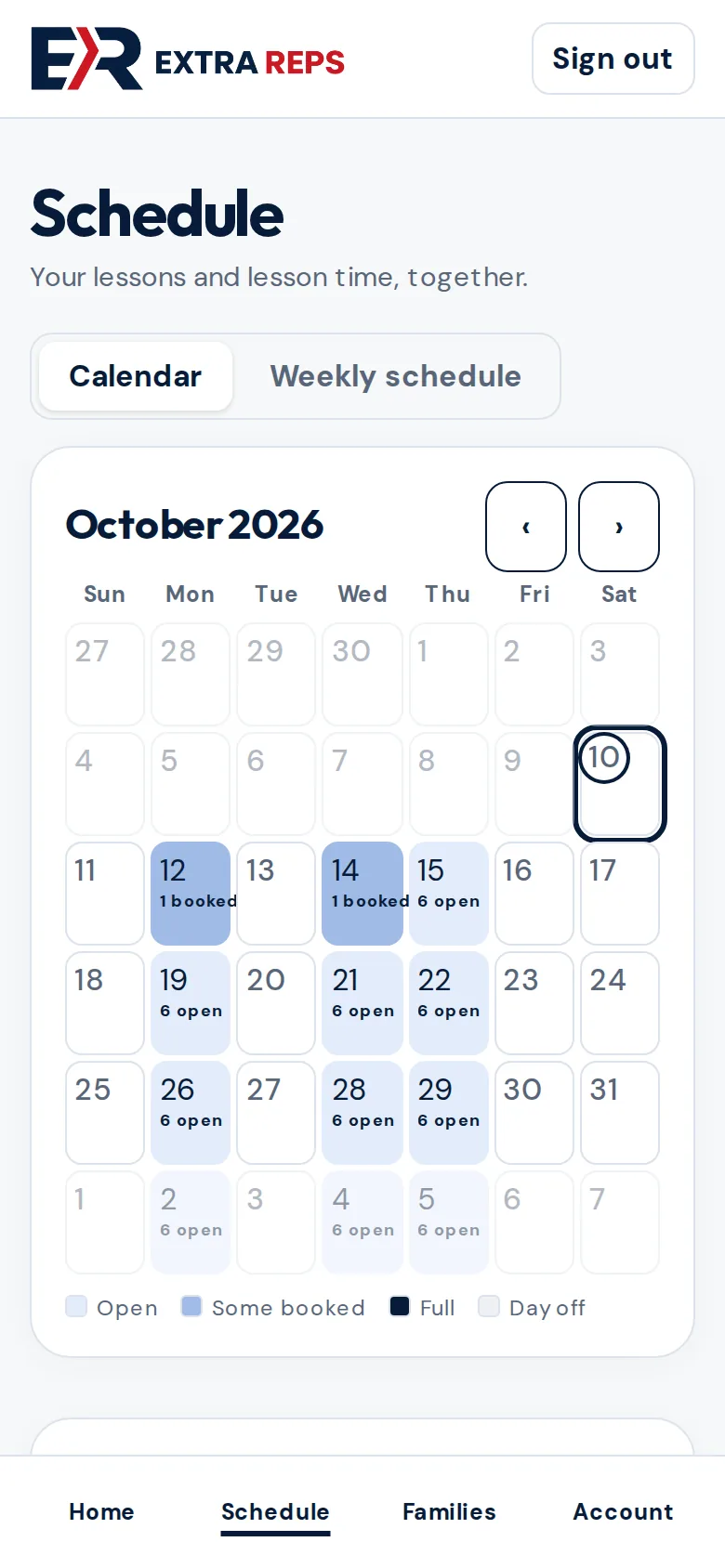
Schedule opens on your calendar. Each day shows whether it’s open, partly booked, full or a day off. Tap any day to see its lessons and open times.
Step 5
Change a single day
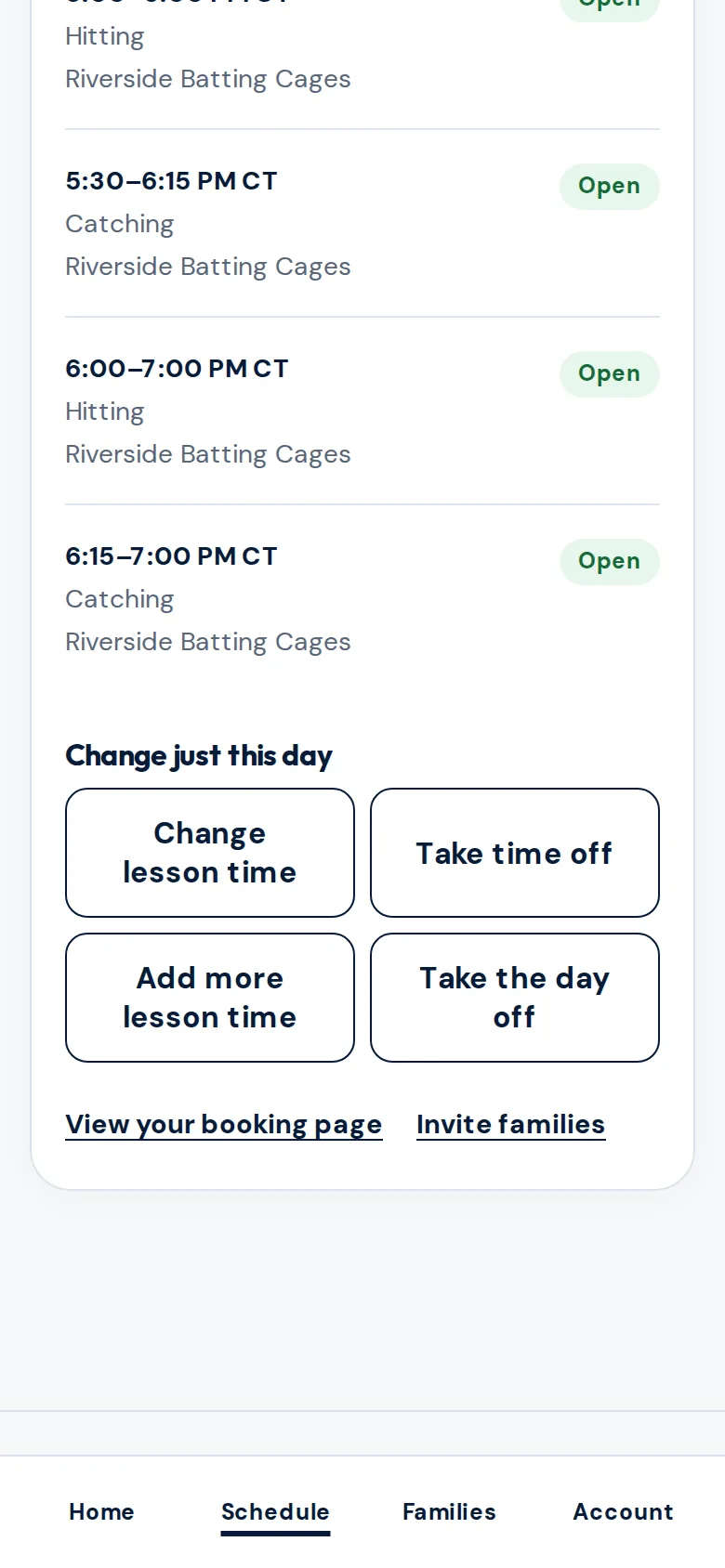
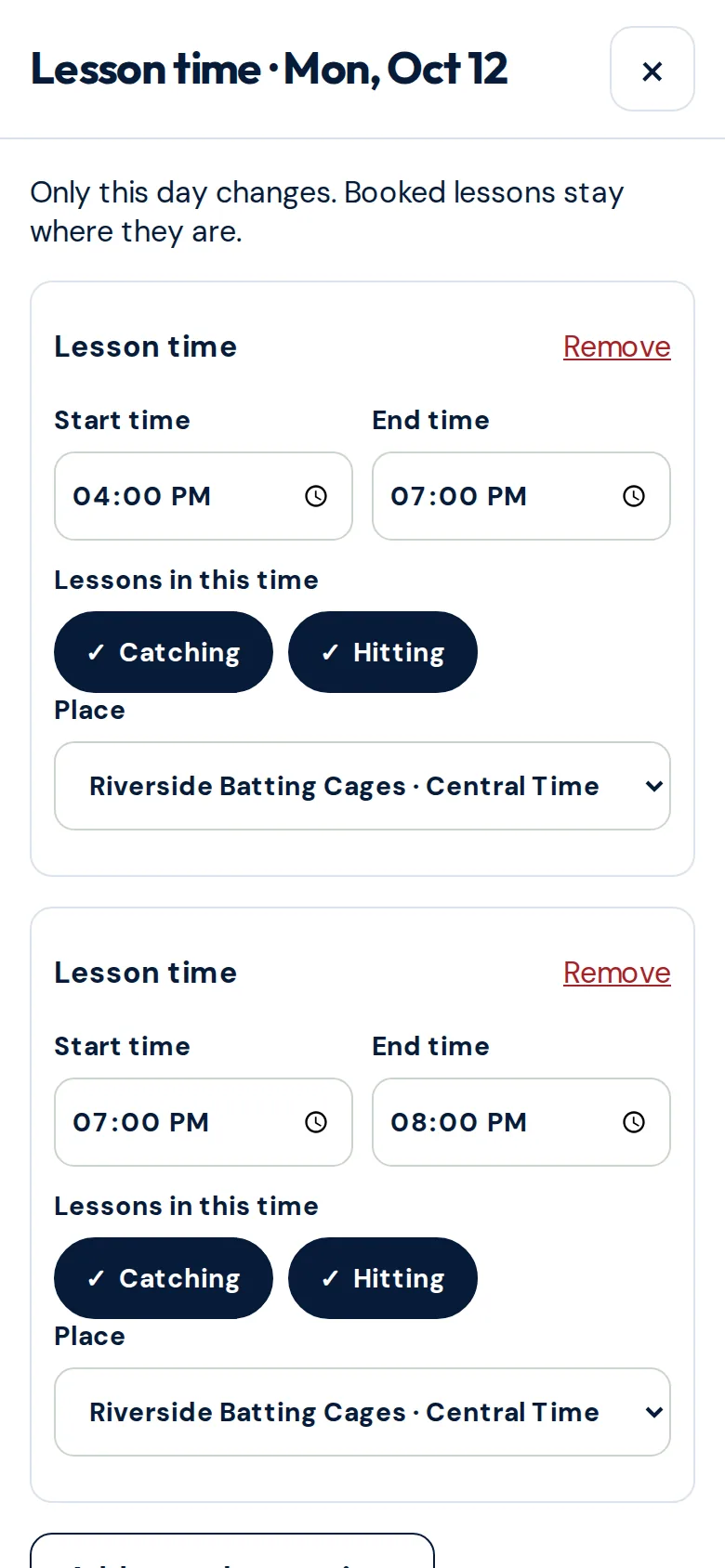
Tap a day, then choose Change lesson time, Take time off, Add more lesson time or Take the day off.
Only that day changes. Booked lessons stay where they are. Tap Save hours when you’re done.
Step 6
Set your weekly schedule
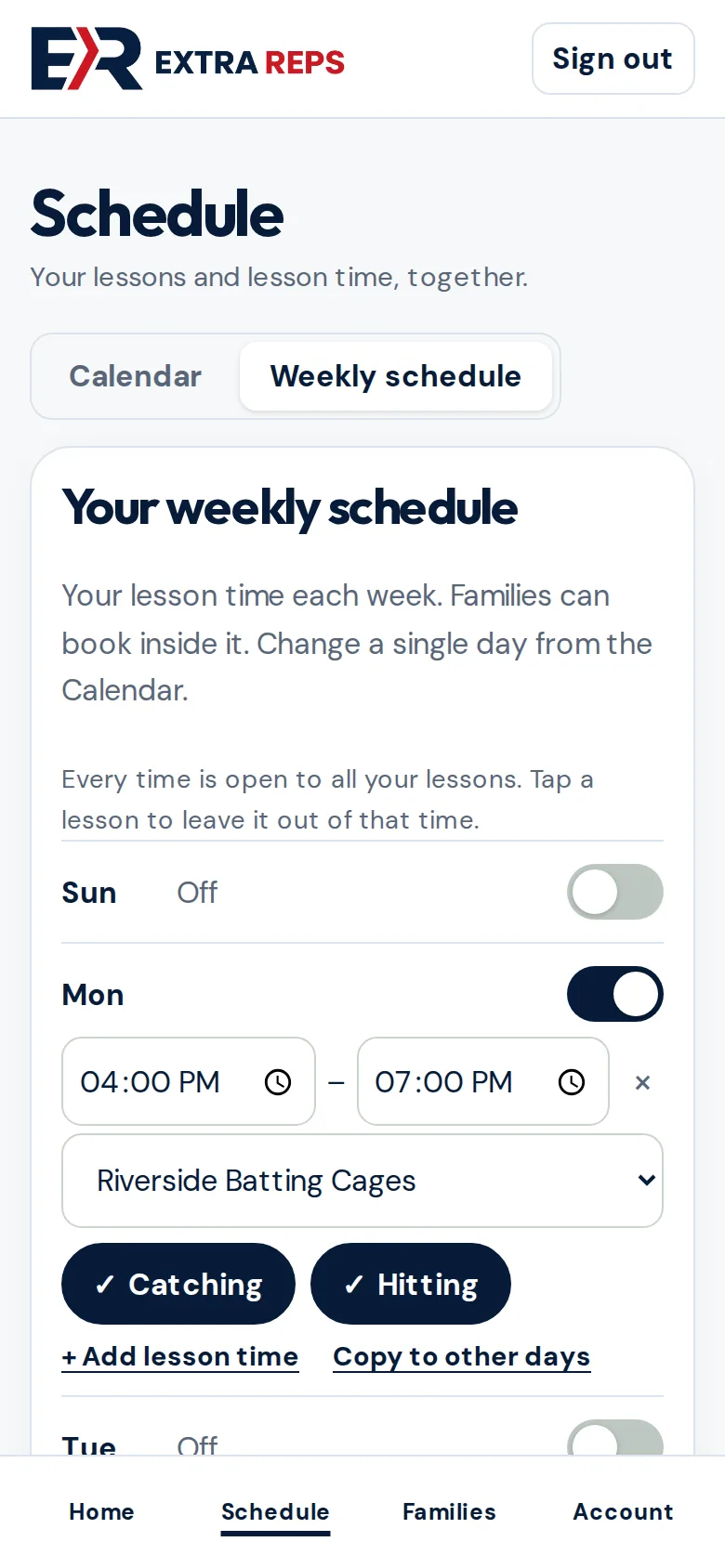
In Schedule, tap Weekly schedule. Switch days on or off and set the start and end time. Use + Add lesson time for a second block on the same day, and Copy to other days to repeat it. Tap Save weekly schedule.
Step 7
Choose which lessons each time is for
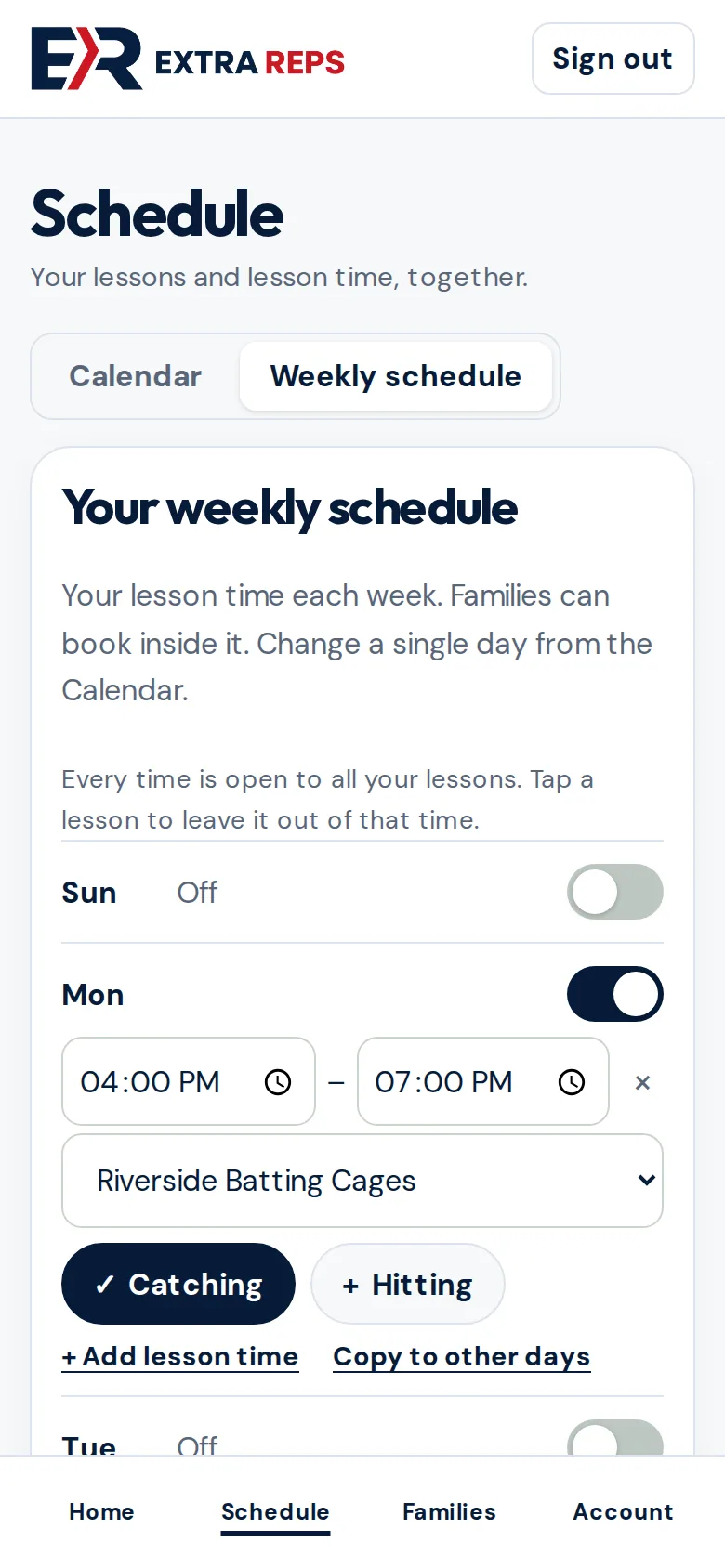
When you offer more than one lesson, each time shows your lessons underneath. A ✓ means families can book that lesson in that time. Tap a lesson to switch it off or back on, for example Catching only on Mondays. Then save.
Step 8
Families and invites
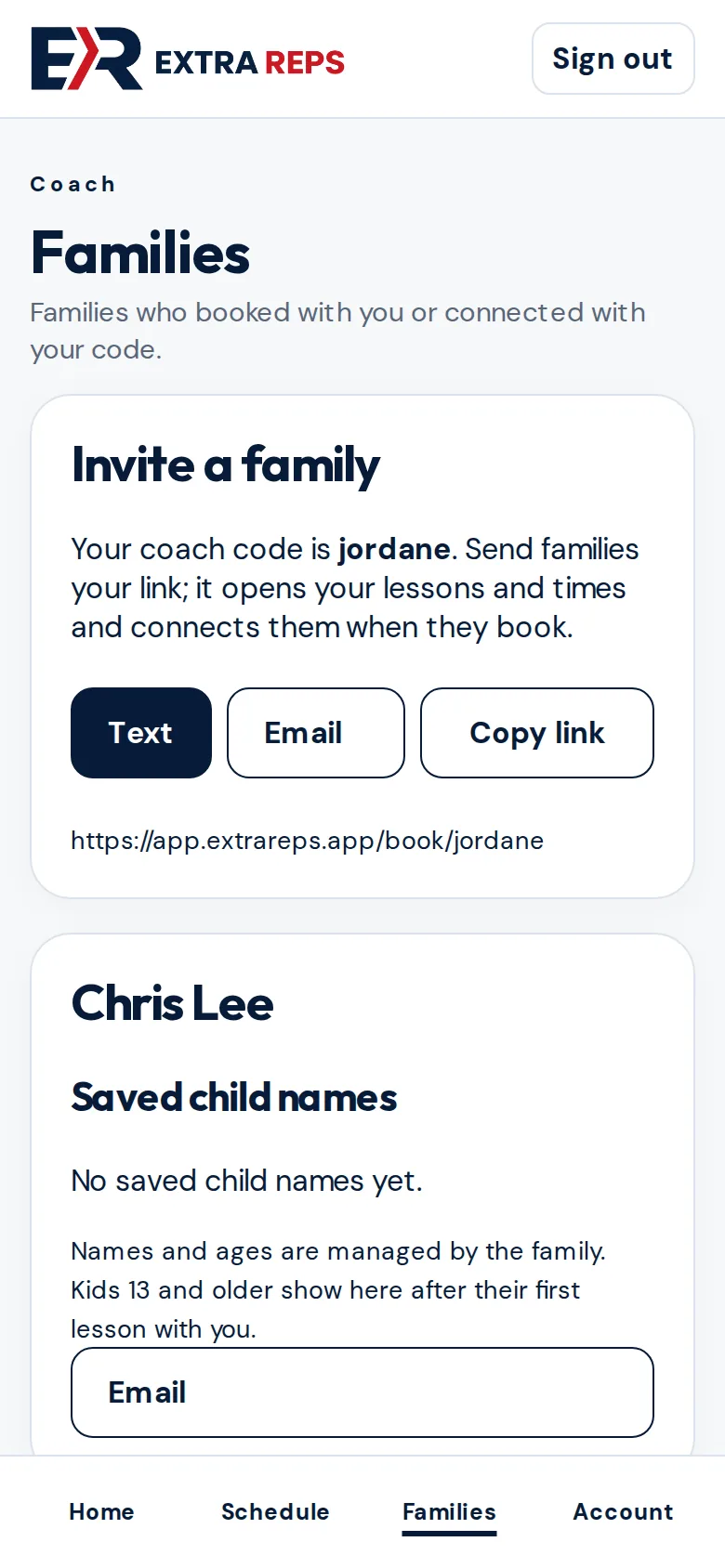
Families lists everyone who has booked with you or connected with your code, with their saved child names. Invite a new family with Text, Email or Copy link.
Step 9
Your profile and coach code
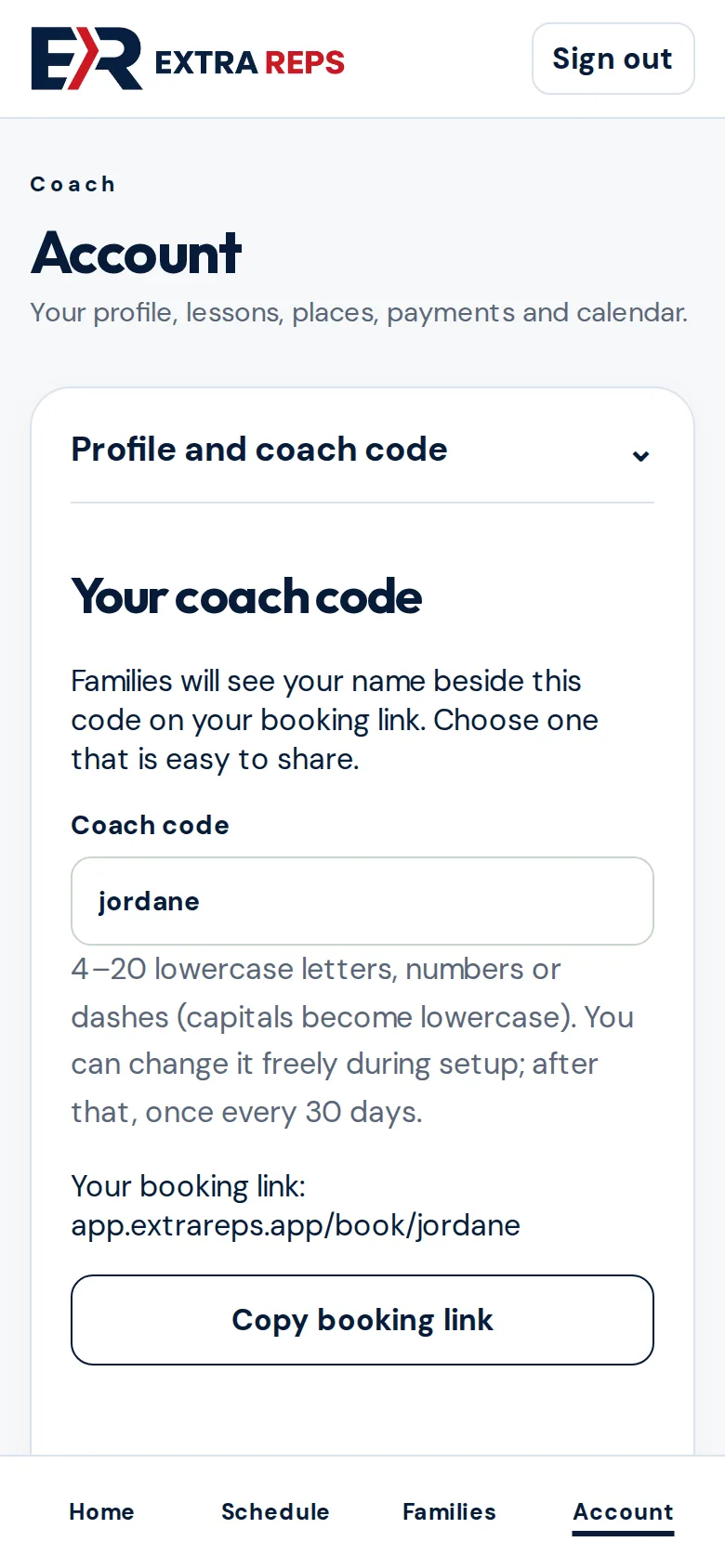
In Account, open Profile and coach code to edit what families read about you, or to change your coach code. Codes are 4–20 lowercase letters, numbers or dashes. You can change it freely during setup; after that, once every 30 days.
Step 10
Payments and the rest of Account
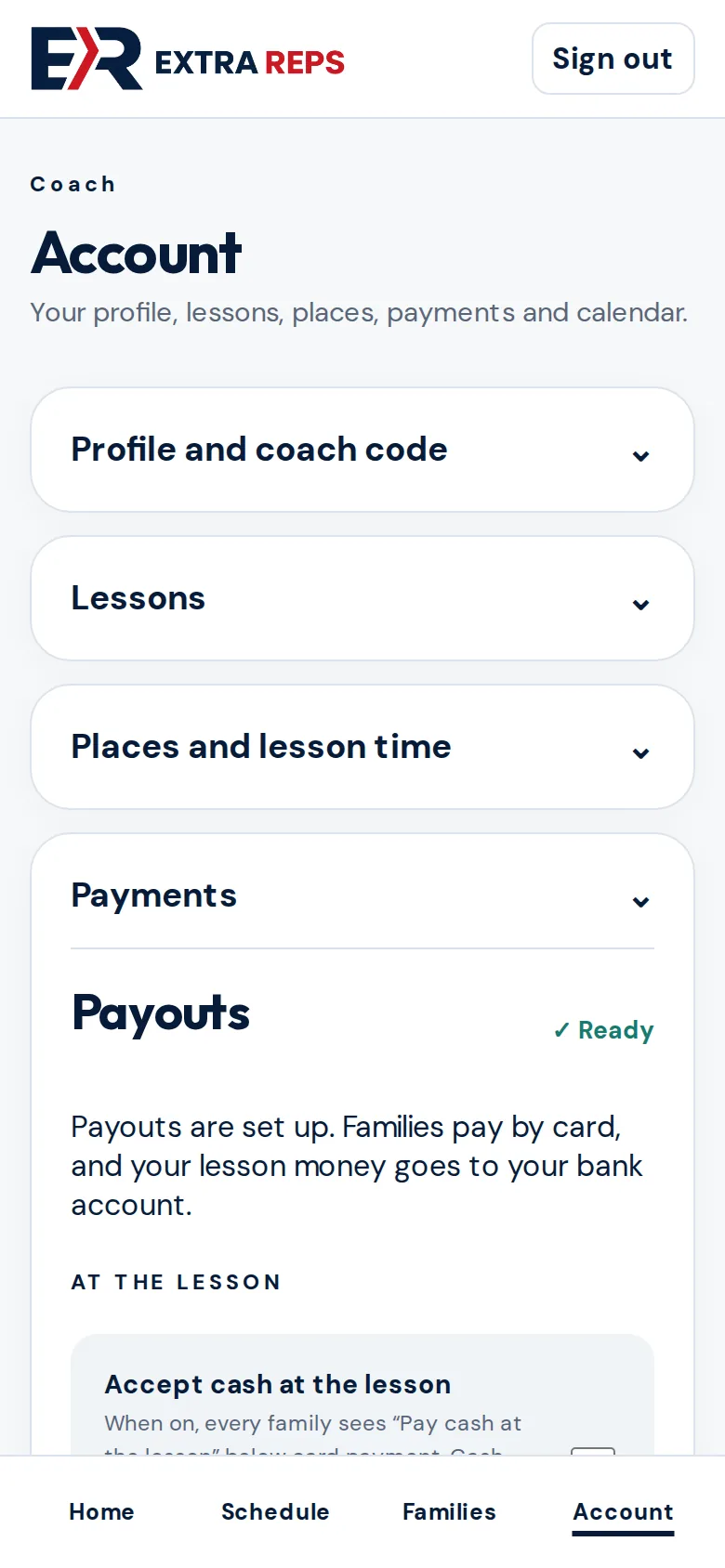
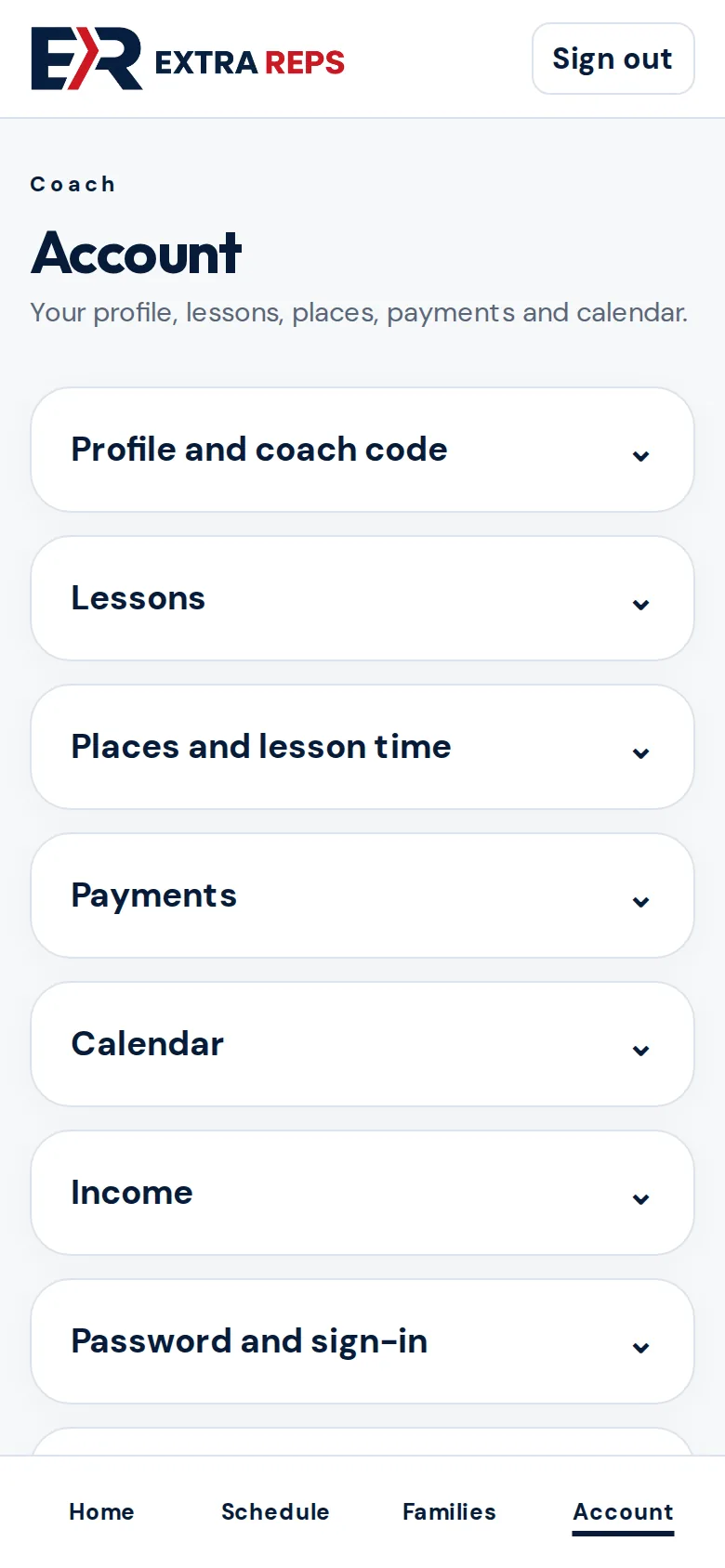
Payments shows your payout status and lets you accept cash at the lesson. Account also holds Calendar (add lessons to Google Calendar), Income, Password and sign-in, Phone and Delete account.
Questions? Email [email protected].