
Families · Step-by-step guide
Family guide: book again and manage lessons
Once you’ve booked once, your coach and your saved kids are remembered, so the next booking takes a few taps.
Step 1
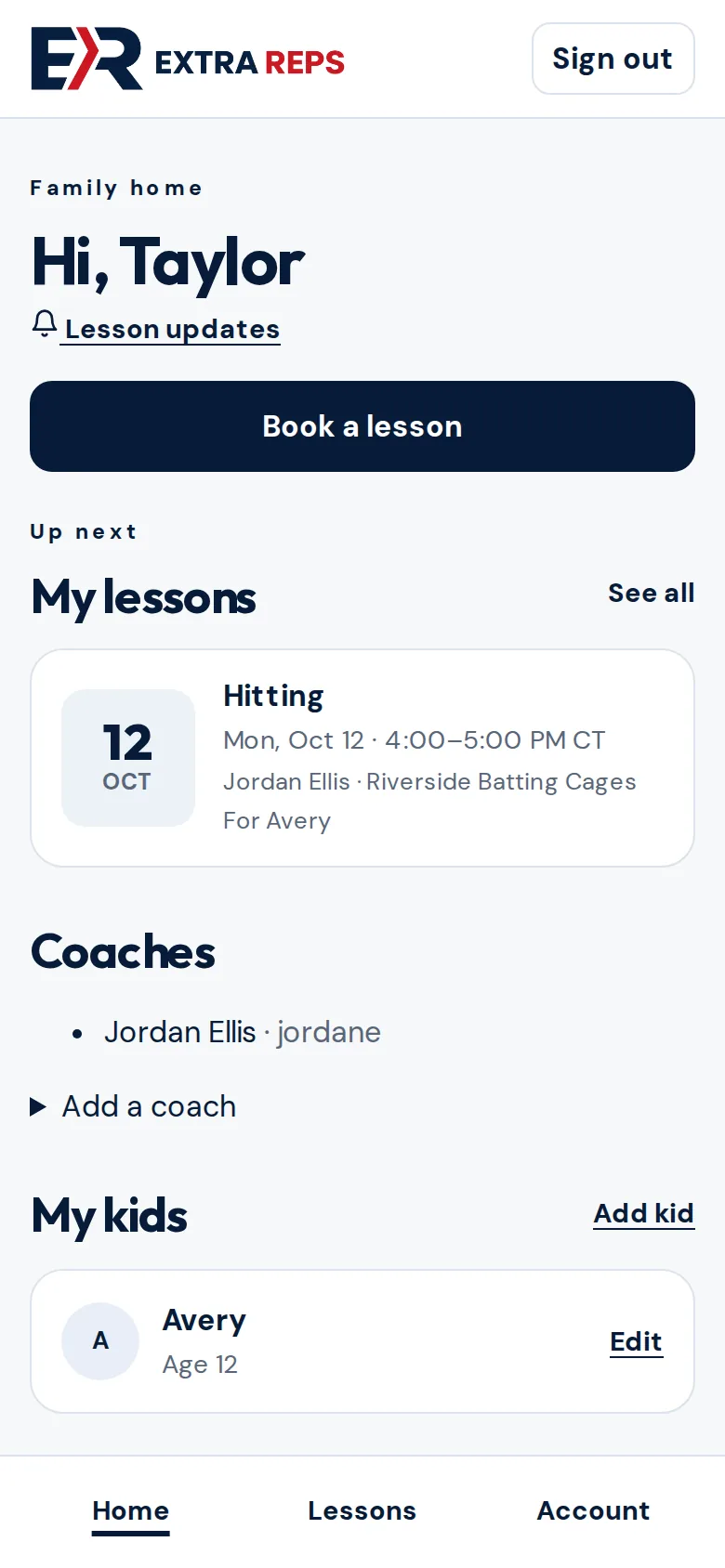
Tap Book a lesson
On Home, tap Book a lesson. With one coach it opens their booking page; with more than one, choose the coach first.
Step 2
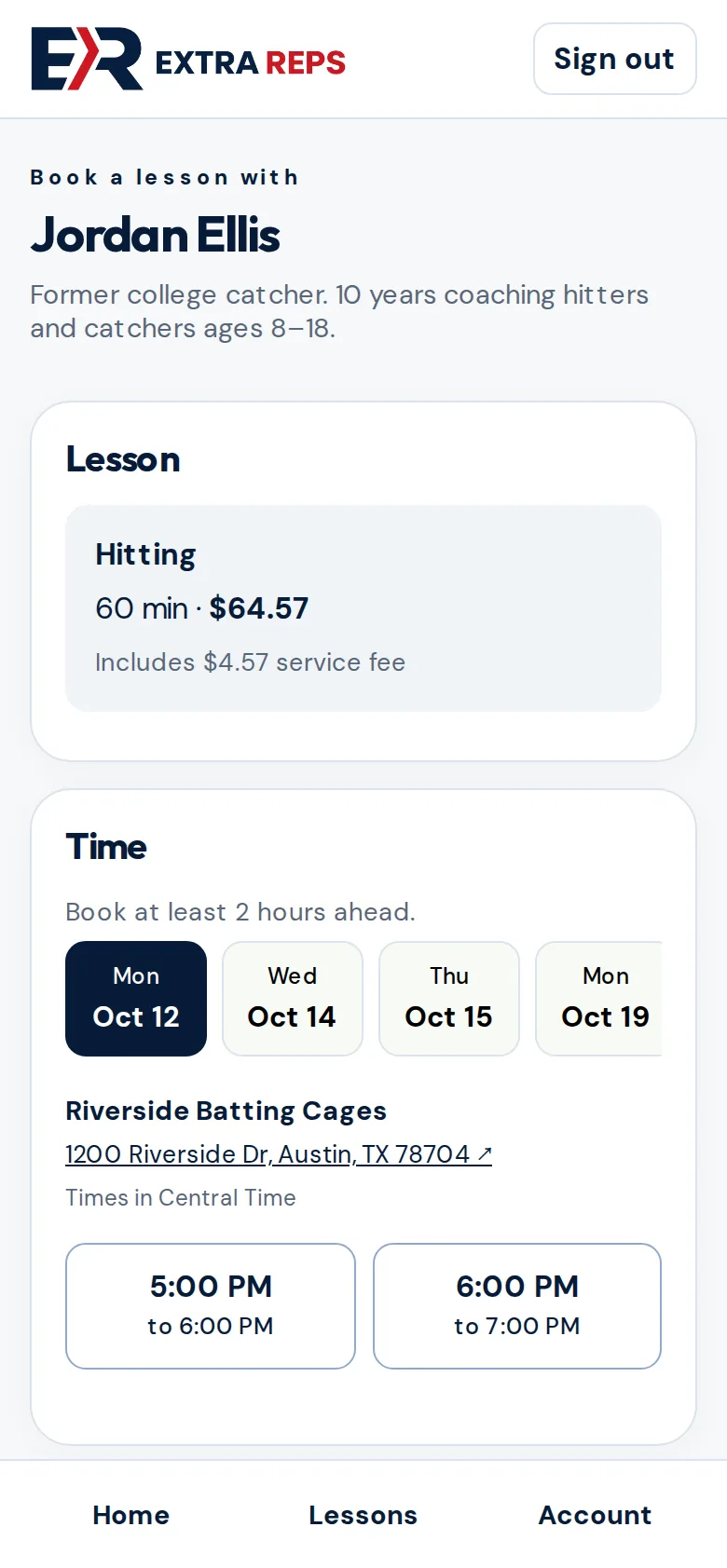
Pick a day and time
Choose the lesson, then a day and an open time.
Step 3
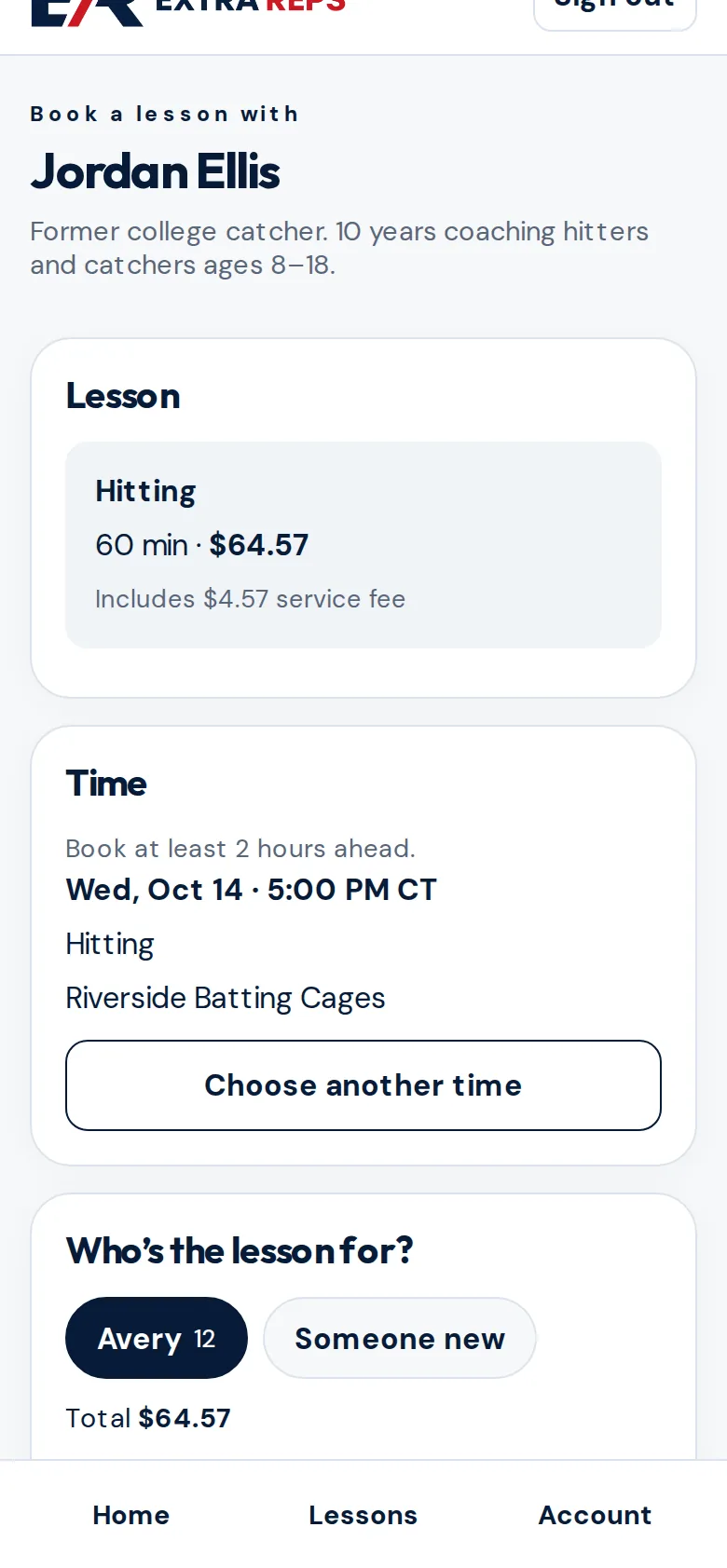
Choose who it’s for
Your saved kids appear as buttons. Tap one, or Someone new to add another child.
Step 4
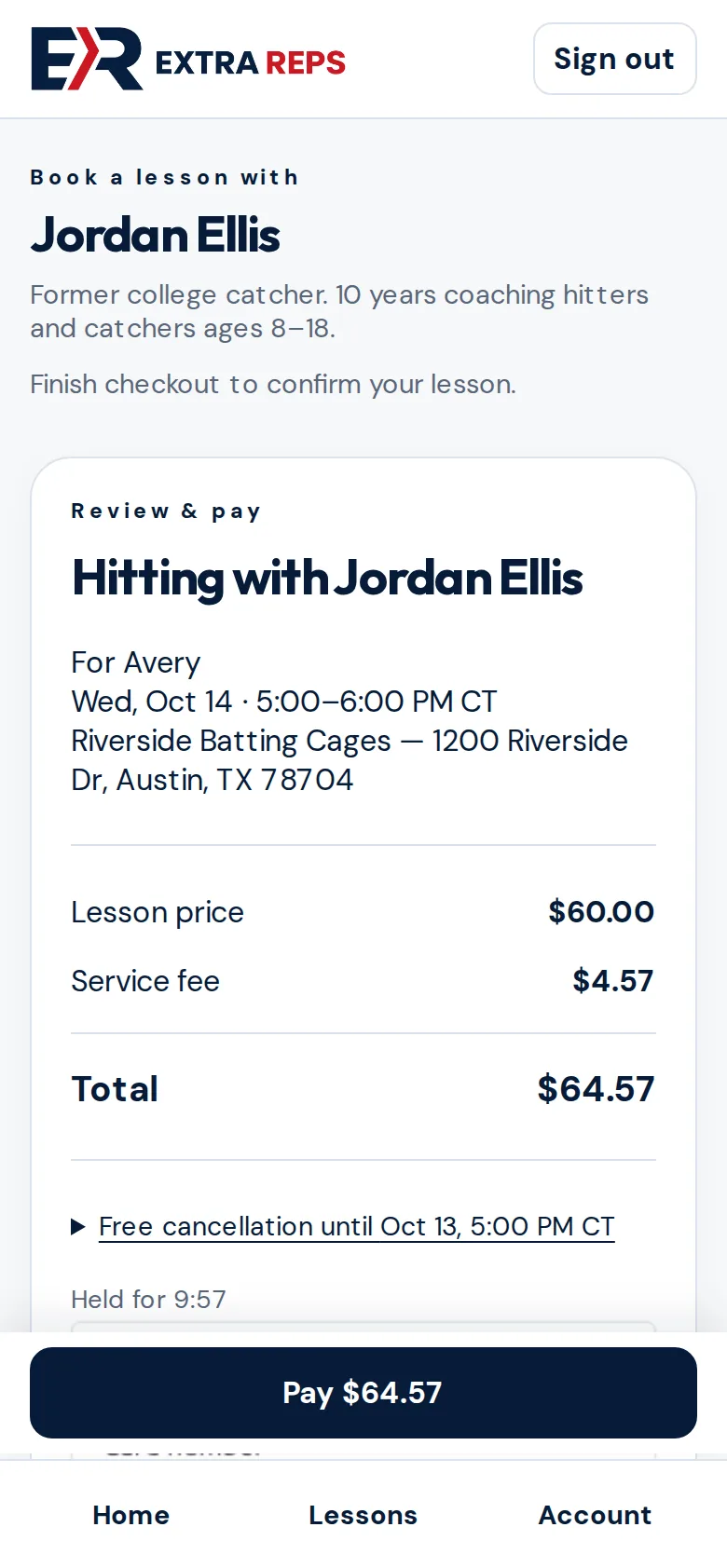
Review and pay
Check the details and the total, then pay. Your time is held for 10 minutes while you pay.
Step 5
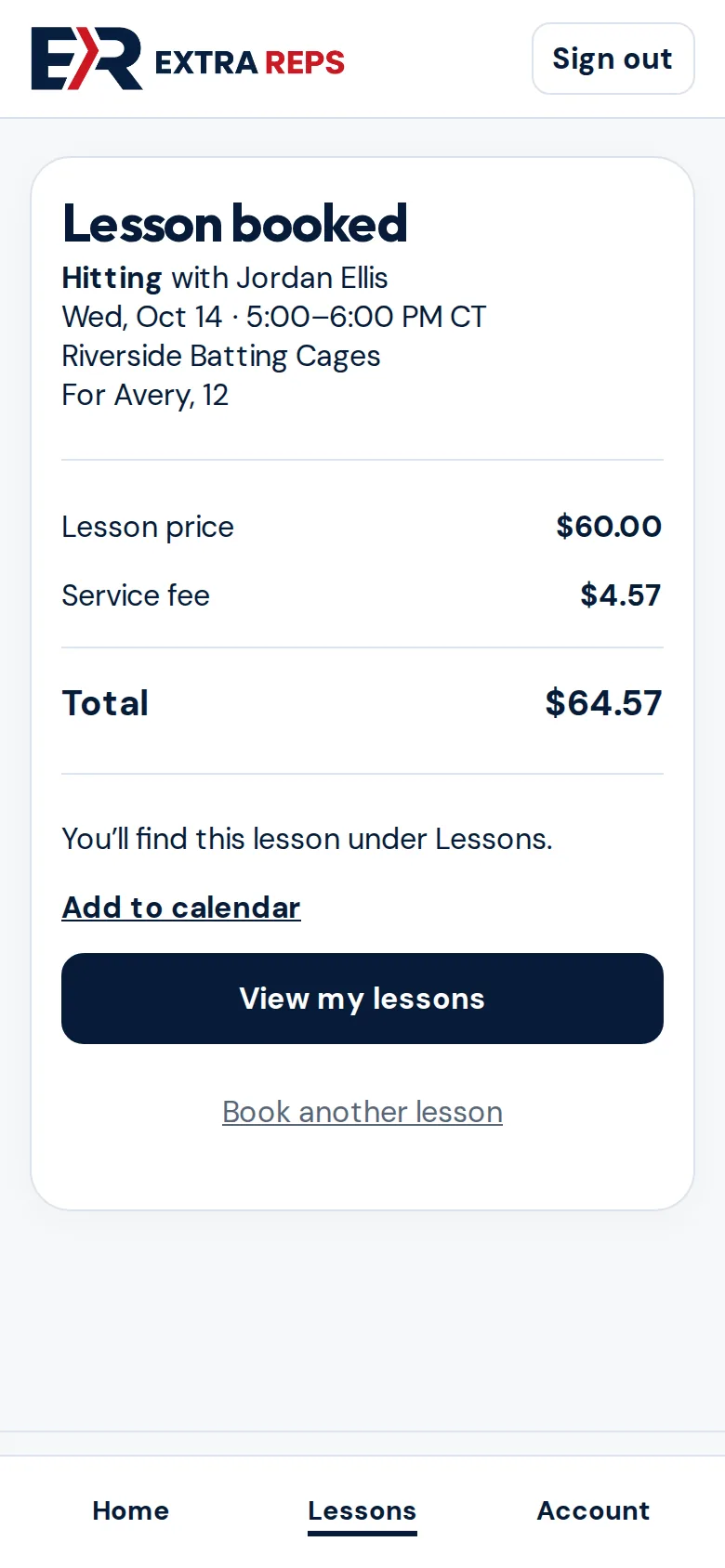
Booked
You get a confirmation here and by email. Tap Add to calendar if you like.
Step 6
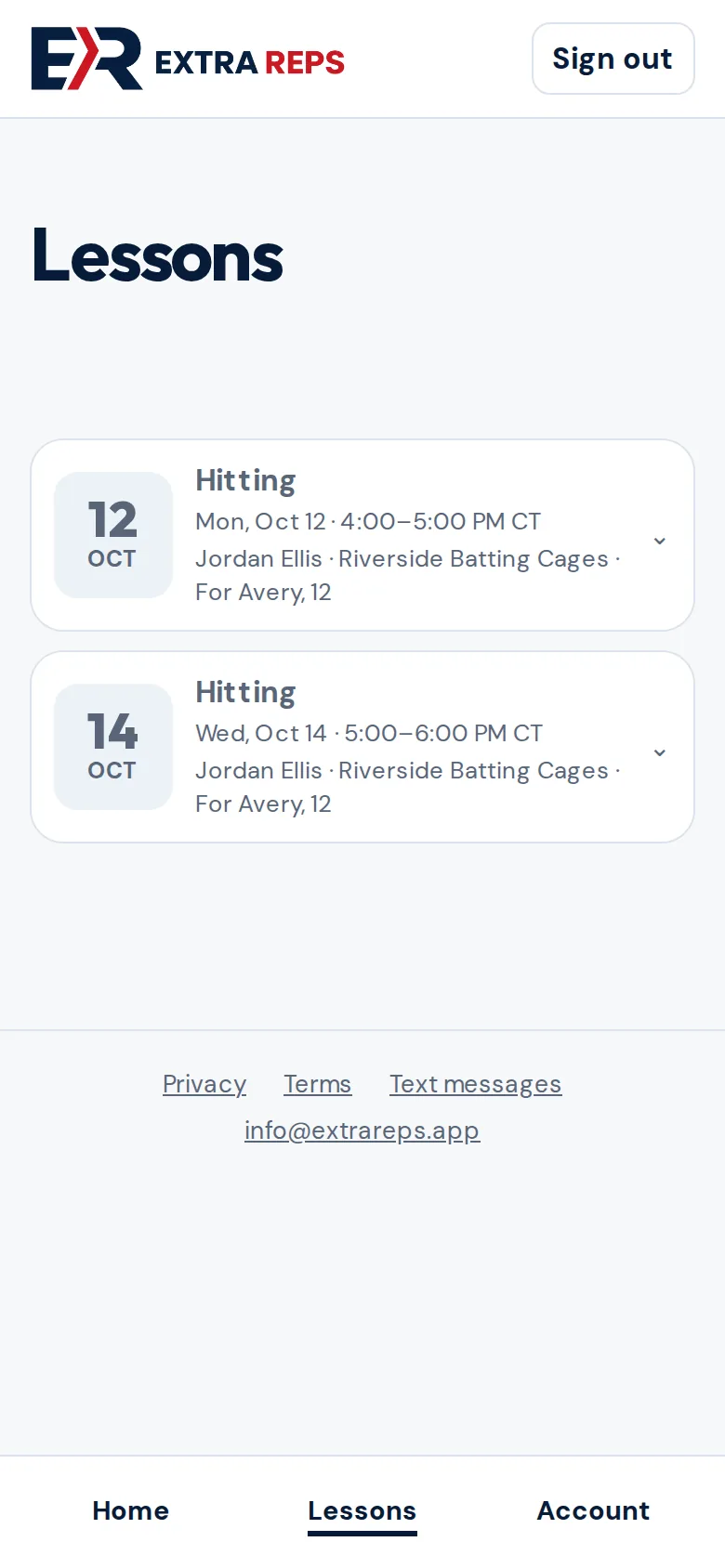
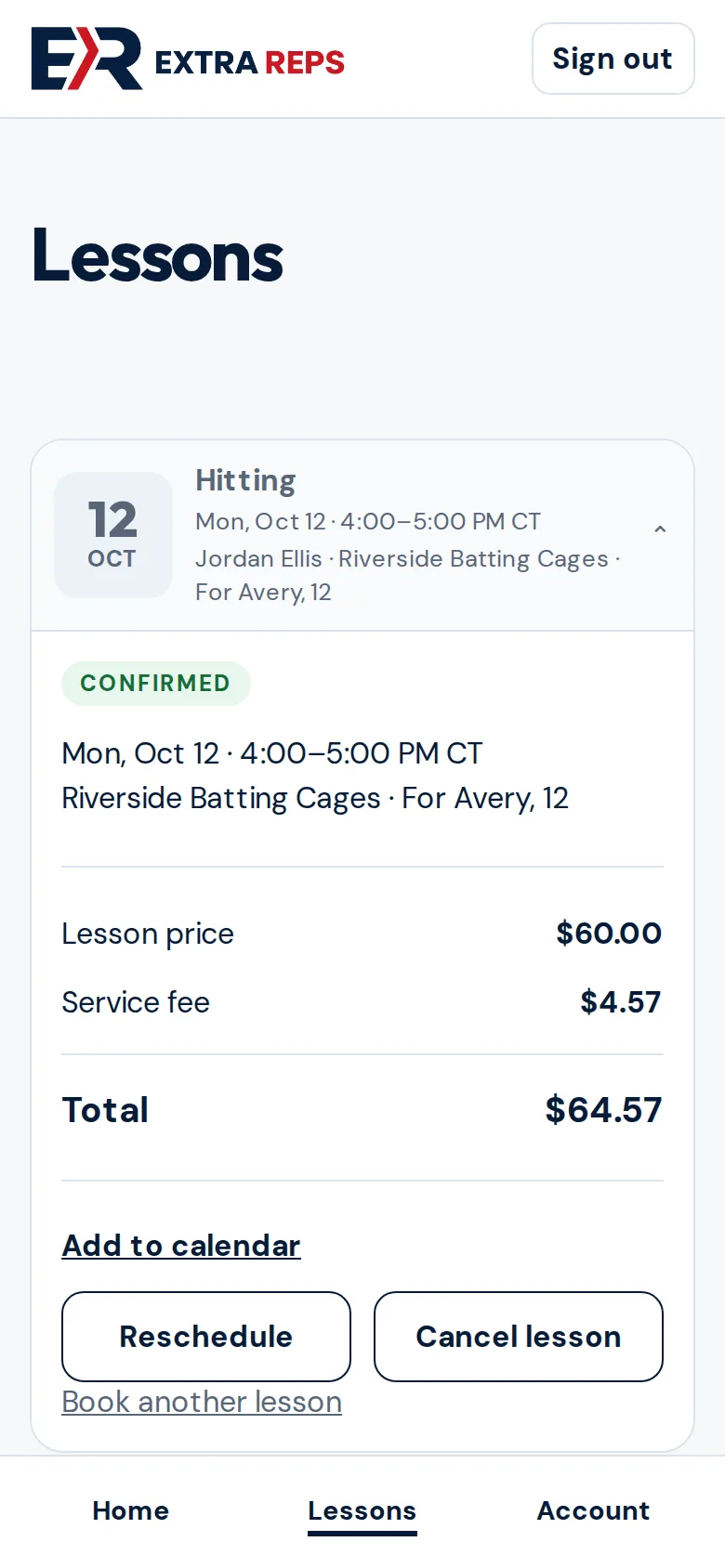
See your lessons
Lessons lists everything coming up. Tap a lesson to see its details, add it to your calendar, Reschedule or Cancel lesson. Your coach’s cancellation rules apply, and you see them before you confirm.
Step 7
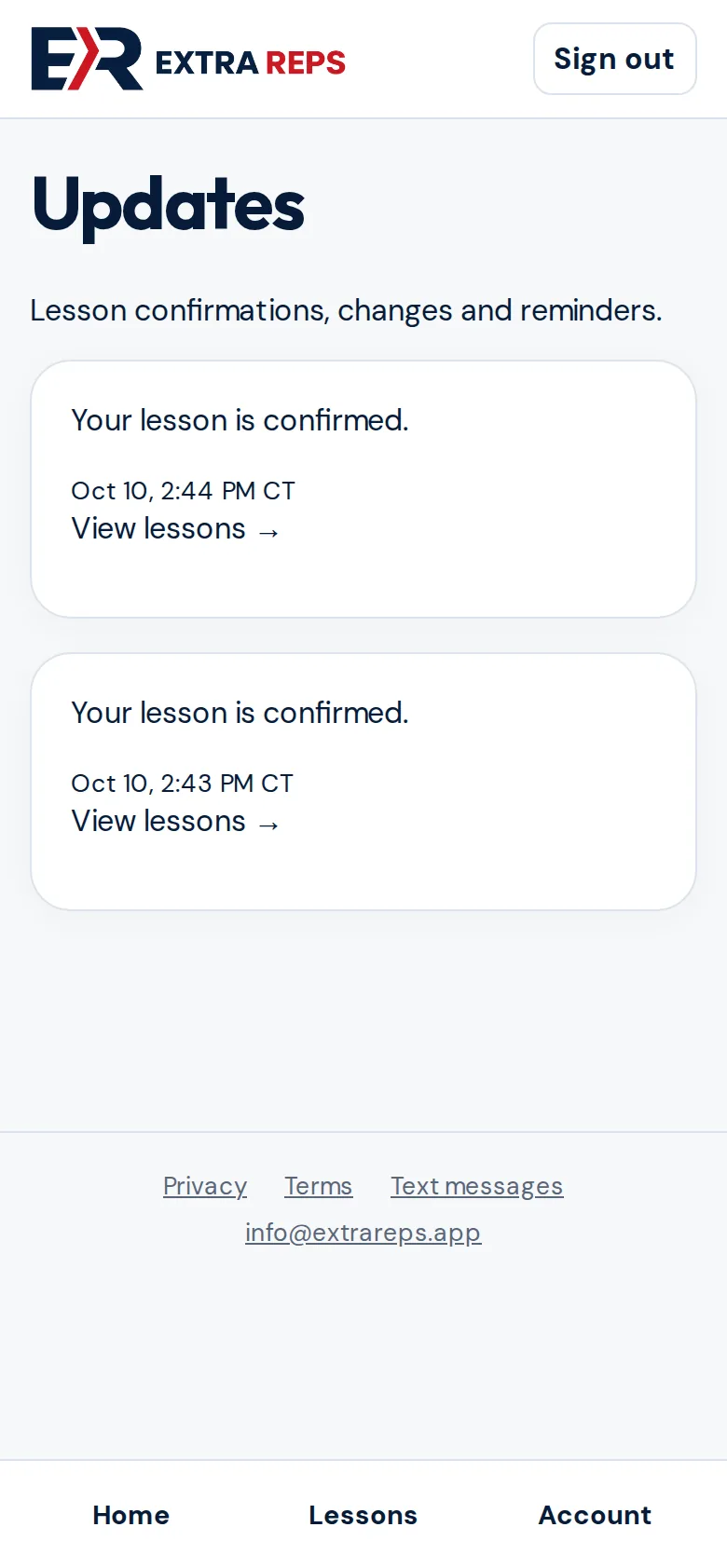
Follow lesson updates
Lesson updates (on Home) collects confirmations, changes and reminders. In the app you can also get them as notifications, and you can choose text reminders in Account.
Step 8
Add another coach
On Home, open Coaches and tap Add a coach, then enter their code. Or just tap the new coach’s link.
Questions? Email [email protected].