
Coaches · Step-by-step guide
Coach guide: get set up
Setup takes about 10 minutes. Have your lesson prices, the places you coach, the hours you’re available, and your bank account or debit card handy for payouts.
Step 1
Create your account
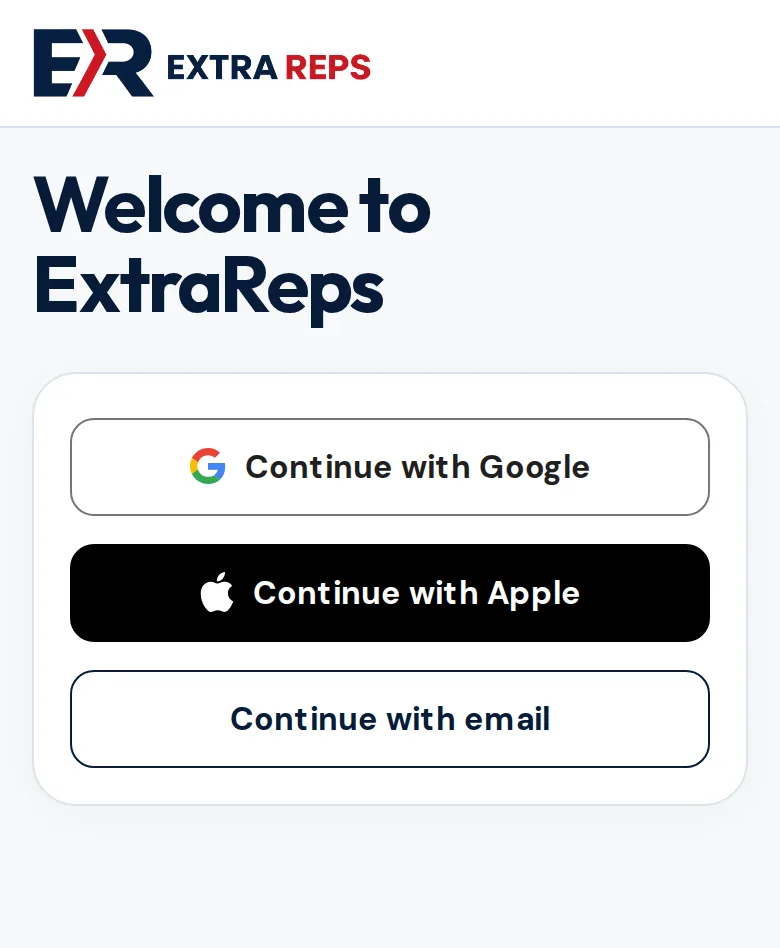
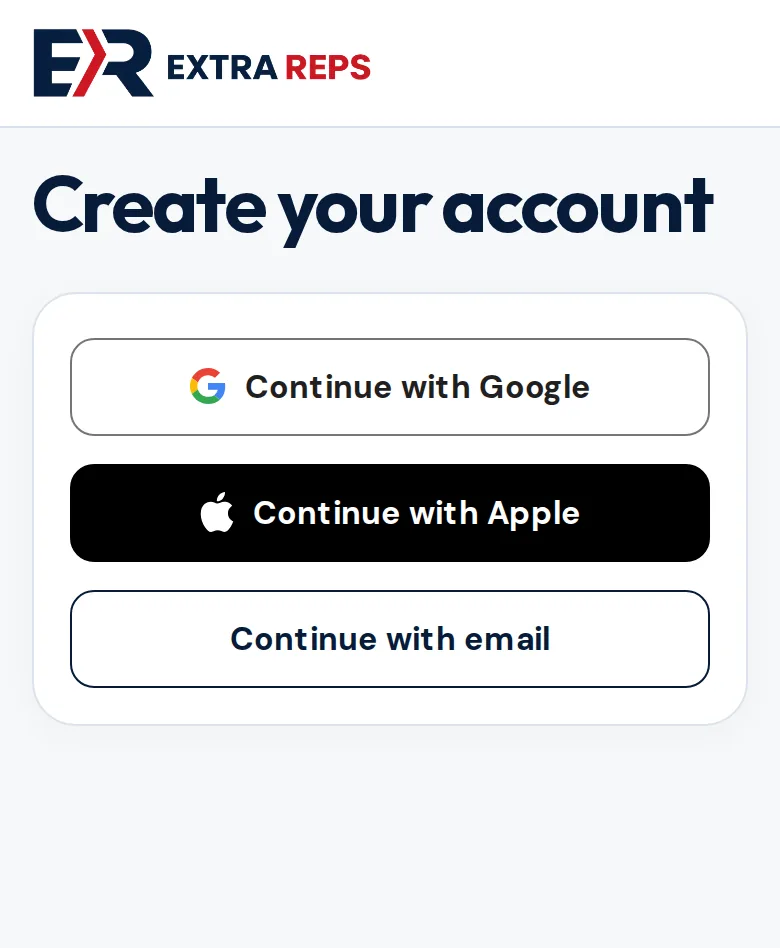
Open the ExtraReps app, or go to app.extrareps.app, and tap Create an account. Continue with Google or Apple, or choose Continue with email.
Step 2
Choose Coach and add your details
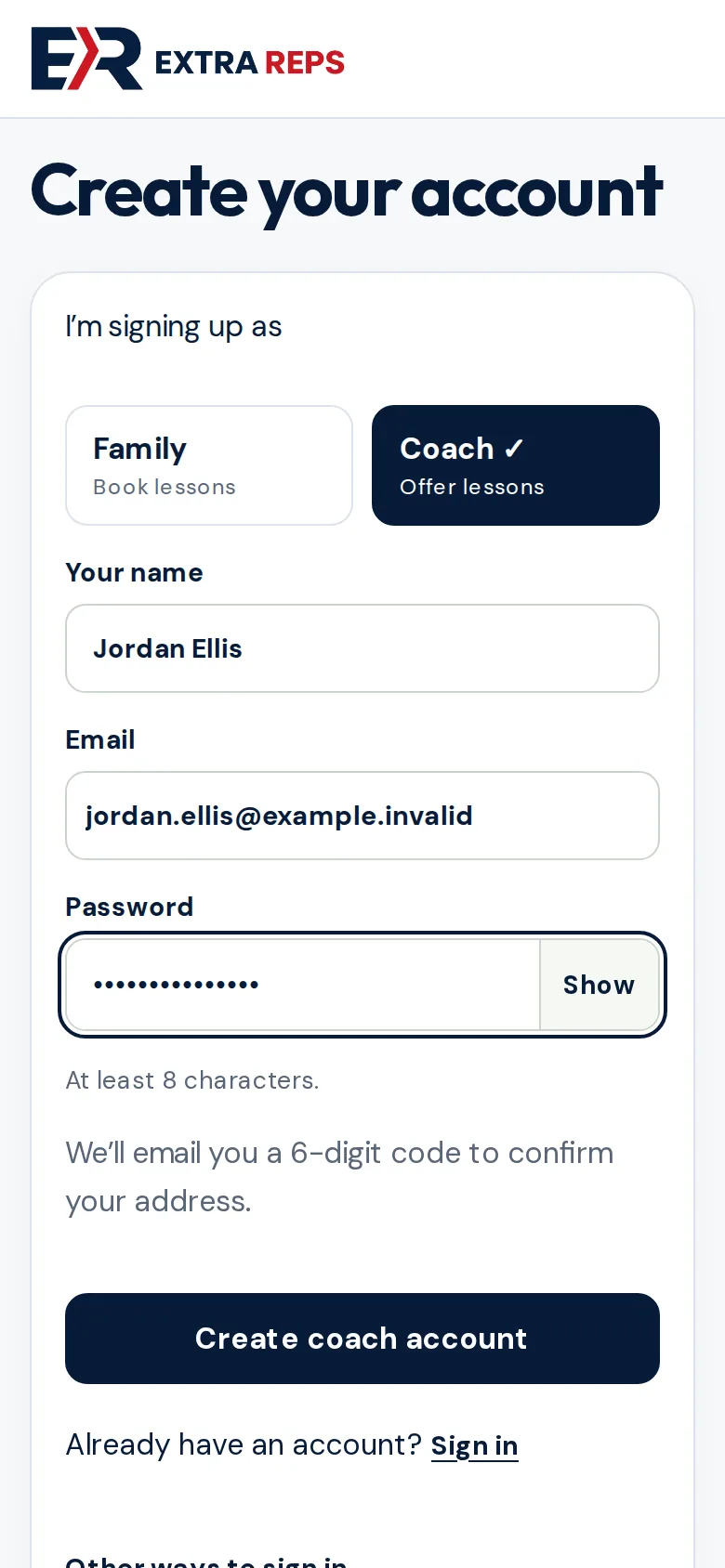
Tap Coach, then enter your name, email and a password of at least 8 characters. Tap Create coach account.
Step 3
Confirm your email
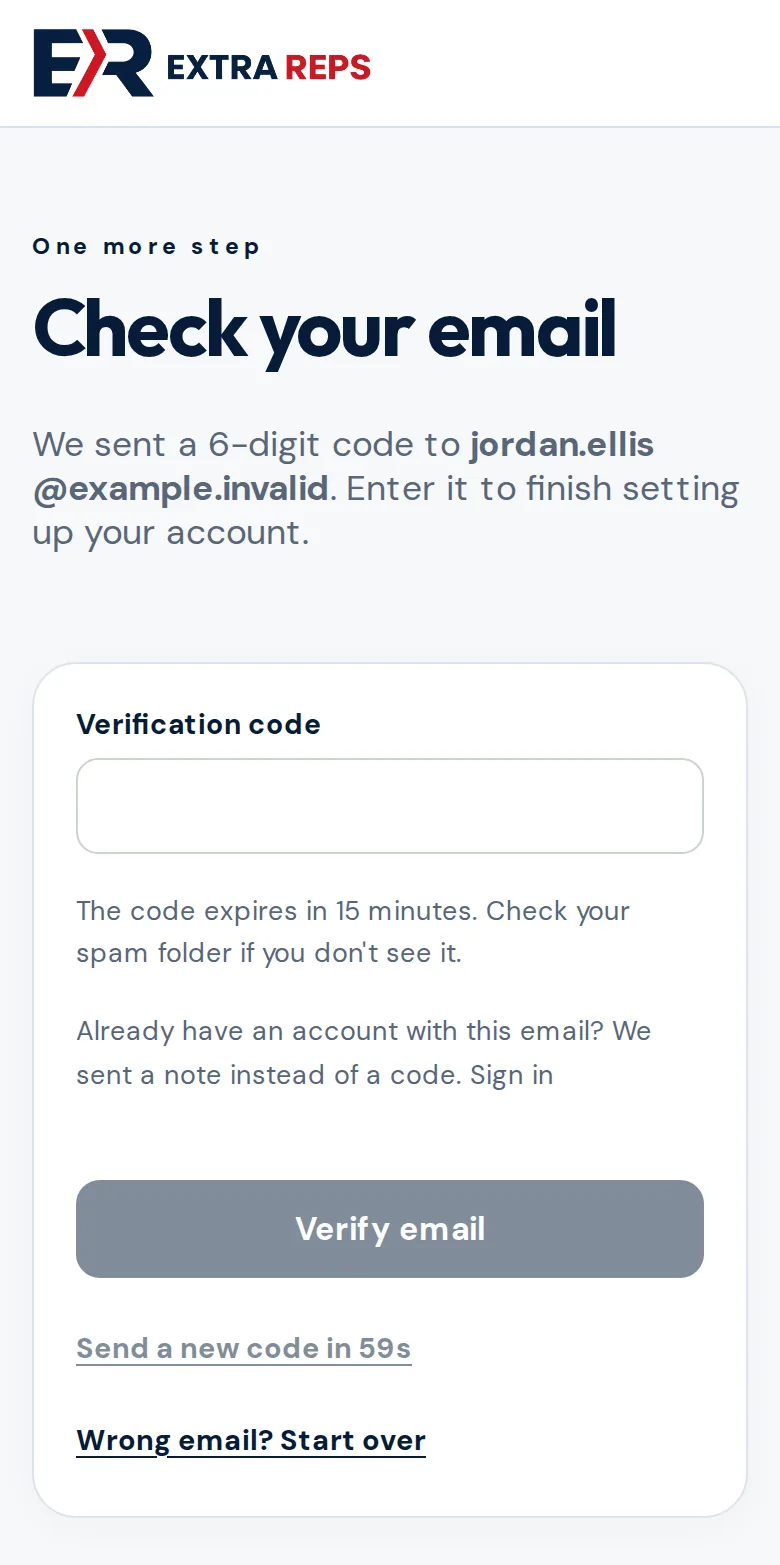
We email you a 6-digit code. Enter it and tap Verify email. If it doesn’t arrive within a minute, check your spam folder or tap Send a new code.
Step 4
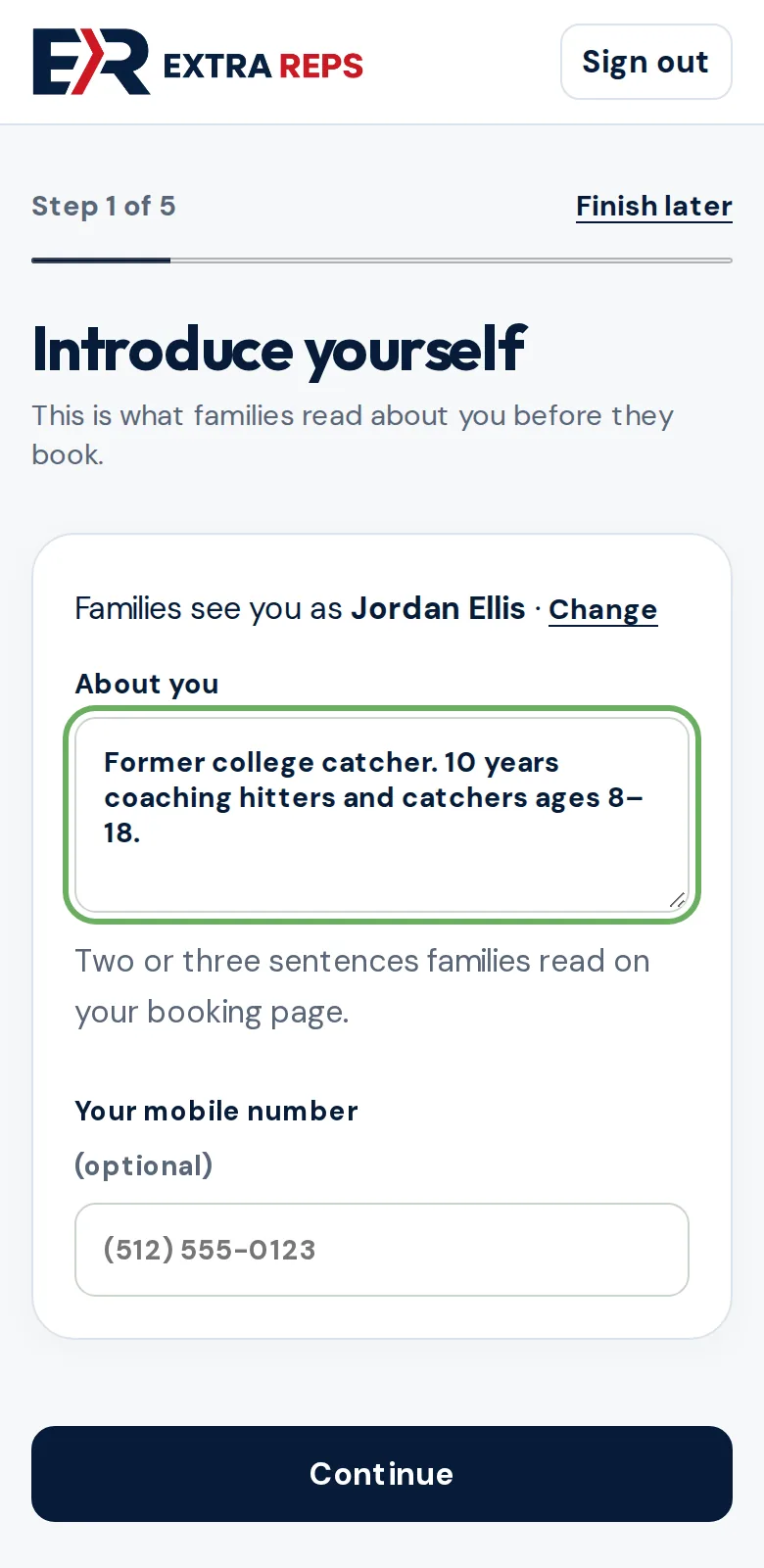
Step 1 of 5: Introduce yourself
Write two or three sentences about your coaching. Families read this on your booking page before they book. Your mobile number is optional.
Need a break? Tap Finish later at any step. Your progress is saved.
Step 5
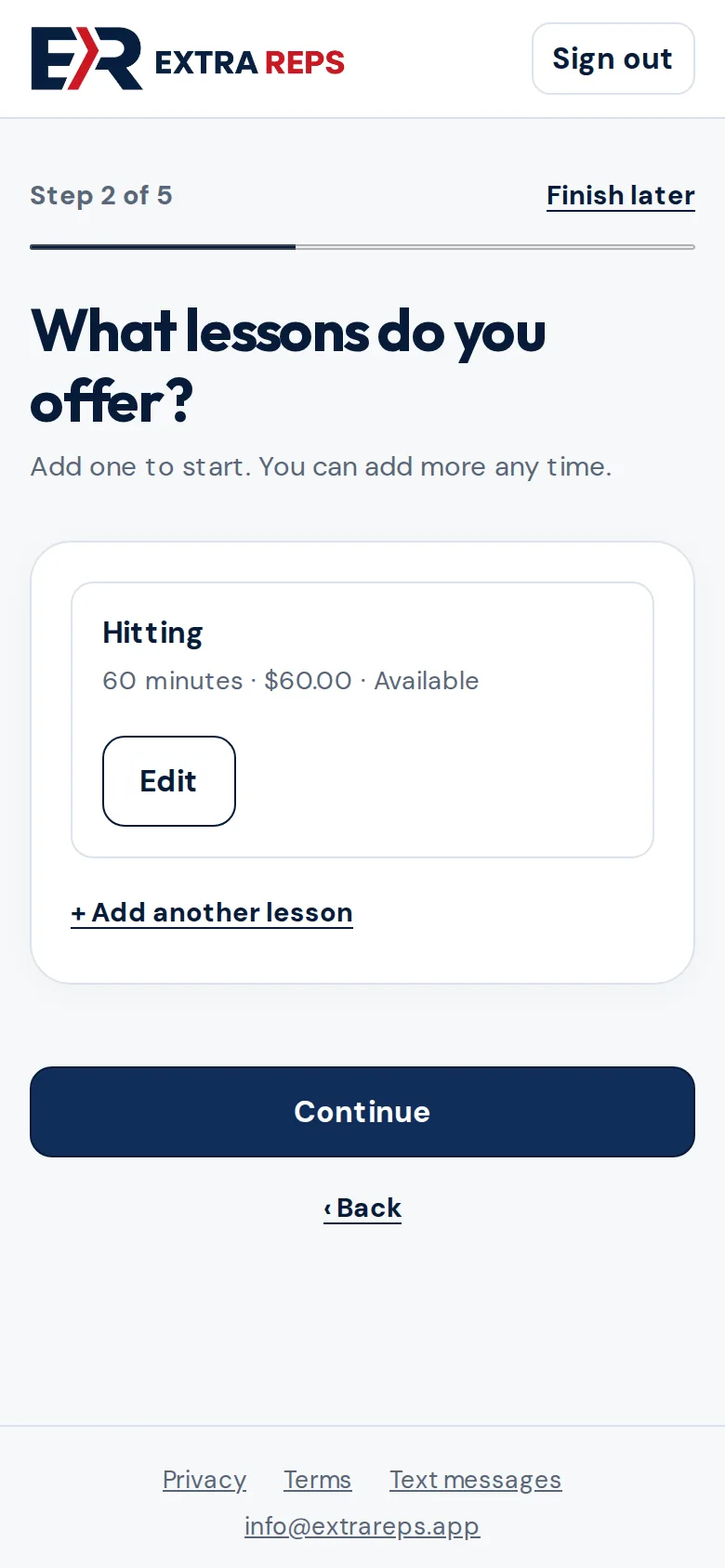
Step 2 of 5: Add your lessons
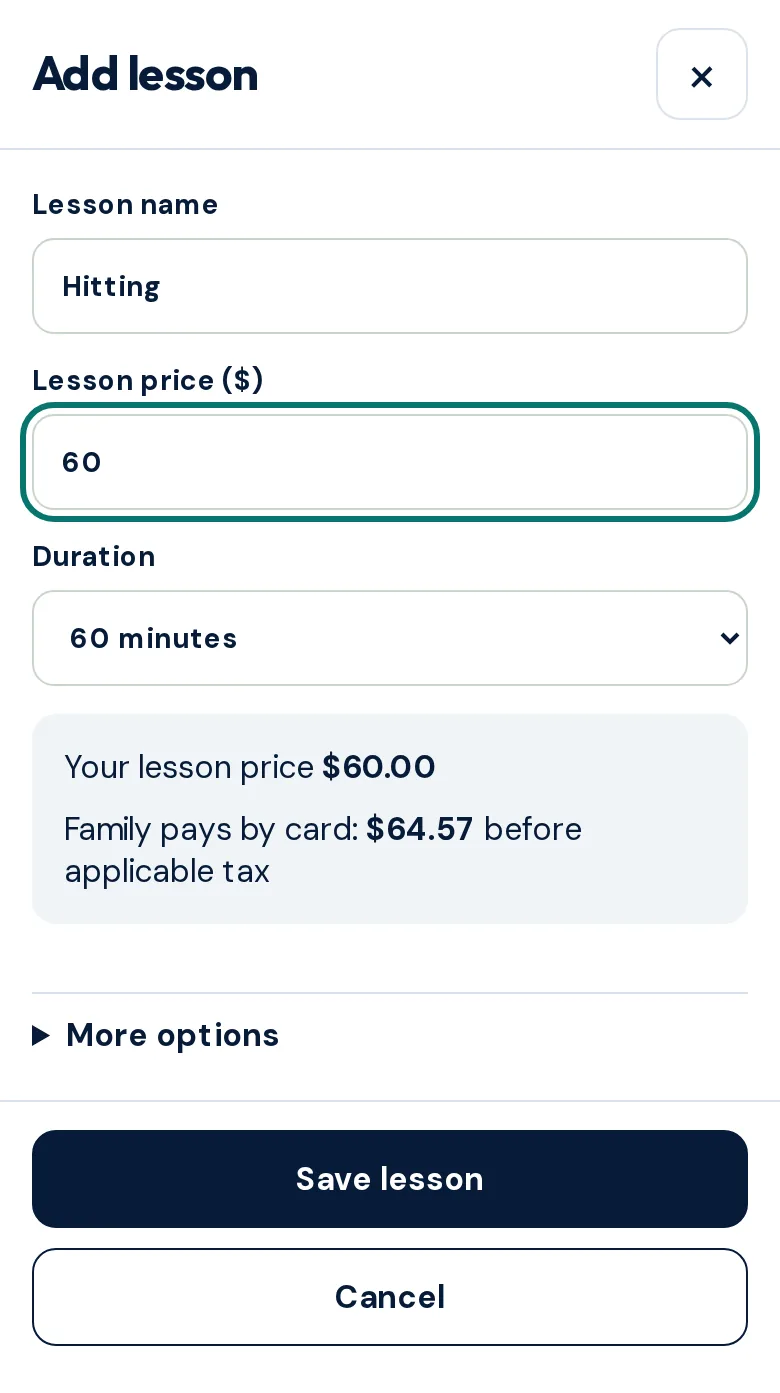
Tap Add your first lesson. Give it a name (like Hitting), a price and a length. The editor shows what a family pays by card: your full lesson price plus the service fee.
Add more with + Add another lesson, then tap Continue.
Step 6
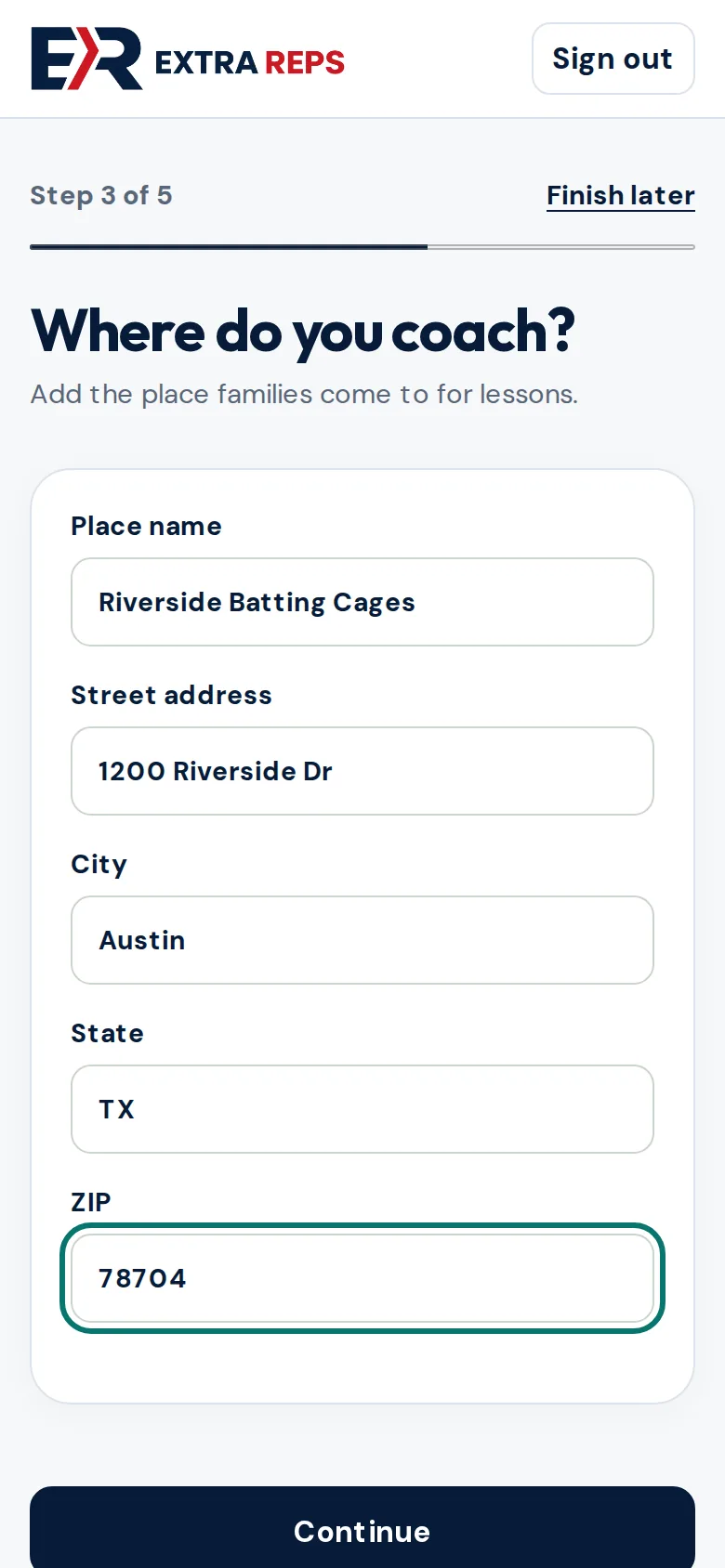
Step 3 of 5: Add where you coach
Enter the place name and address. Families see the address on your booking page and can open it in Maps. You can add more places later.
Step 7
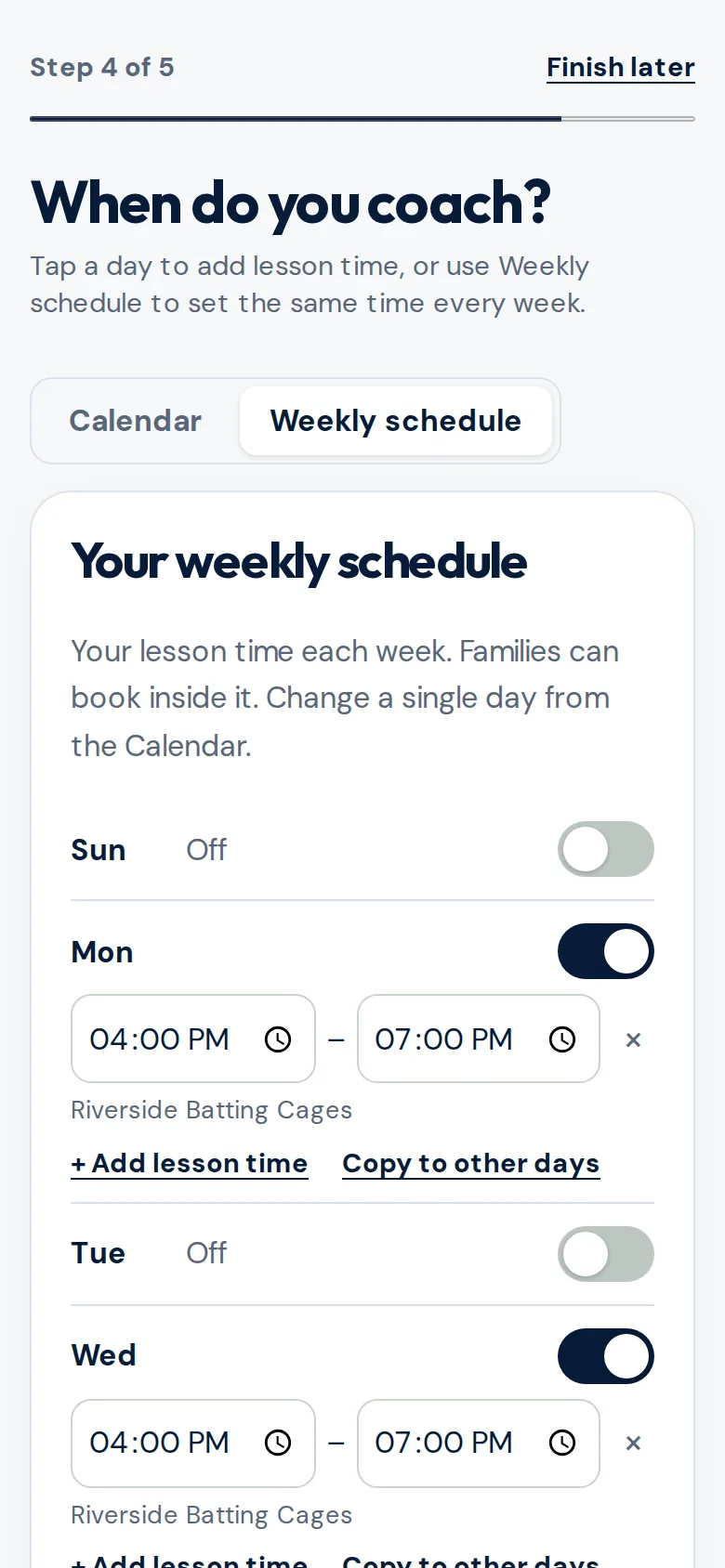
Step 4 of 5: Set when you coach
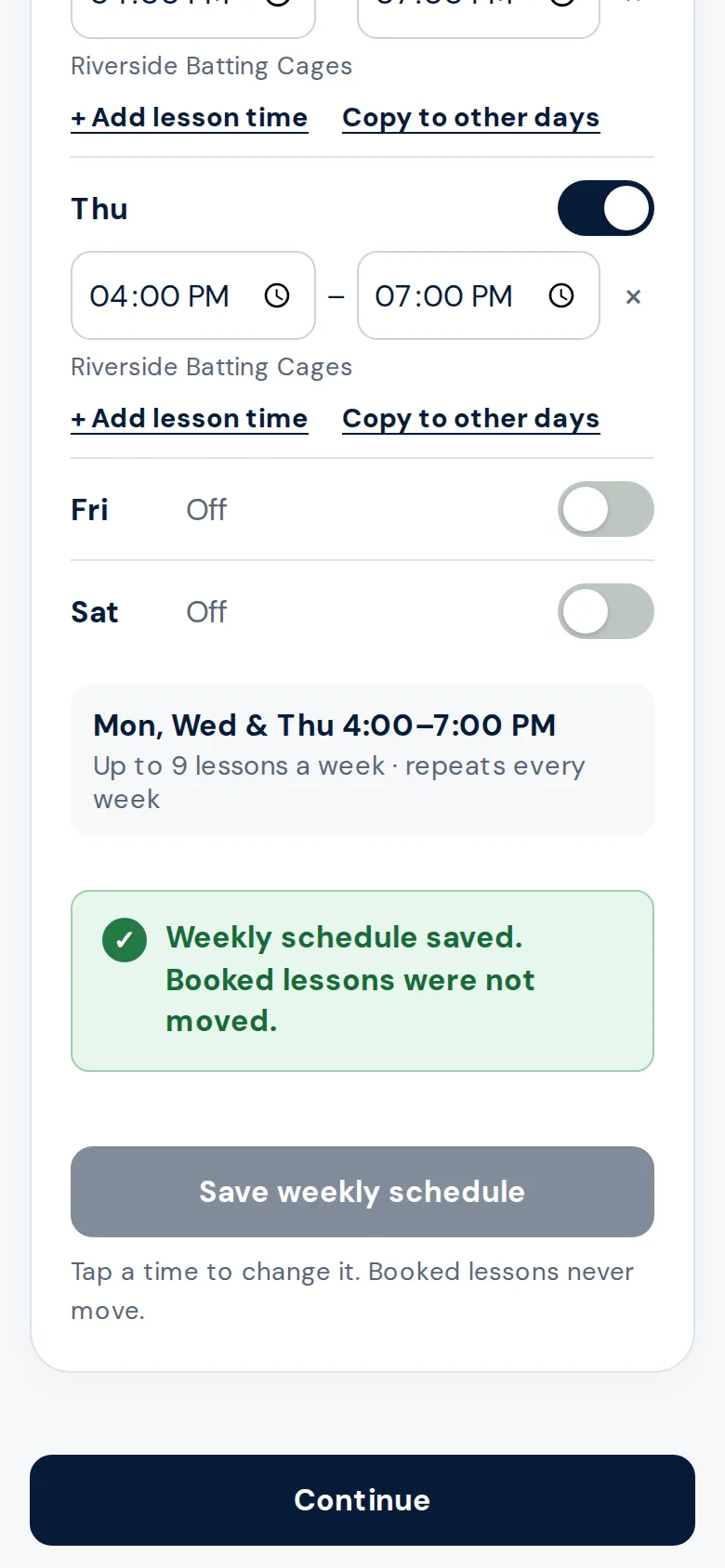
Tap Weekly schedule and switch on the days you coach. Set a start and end time for each day, then tap Save weekly schedule. Families can book any lesson that fits inside these times.
For a one-off change, use Calendar and tap that day.
Step 8
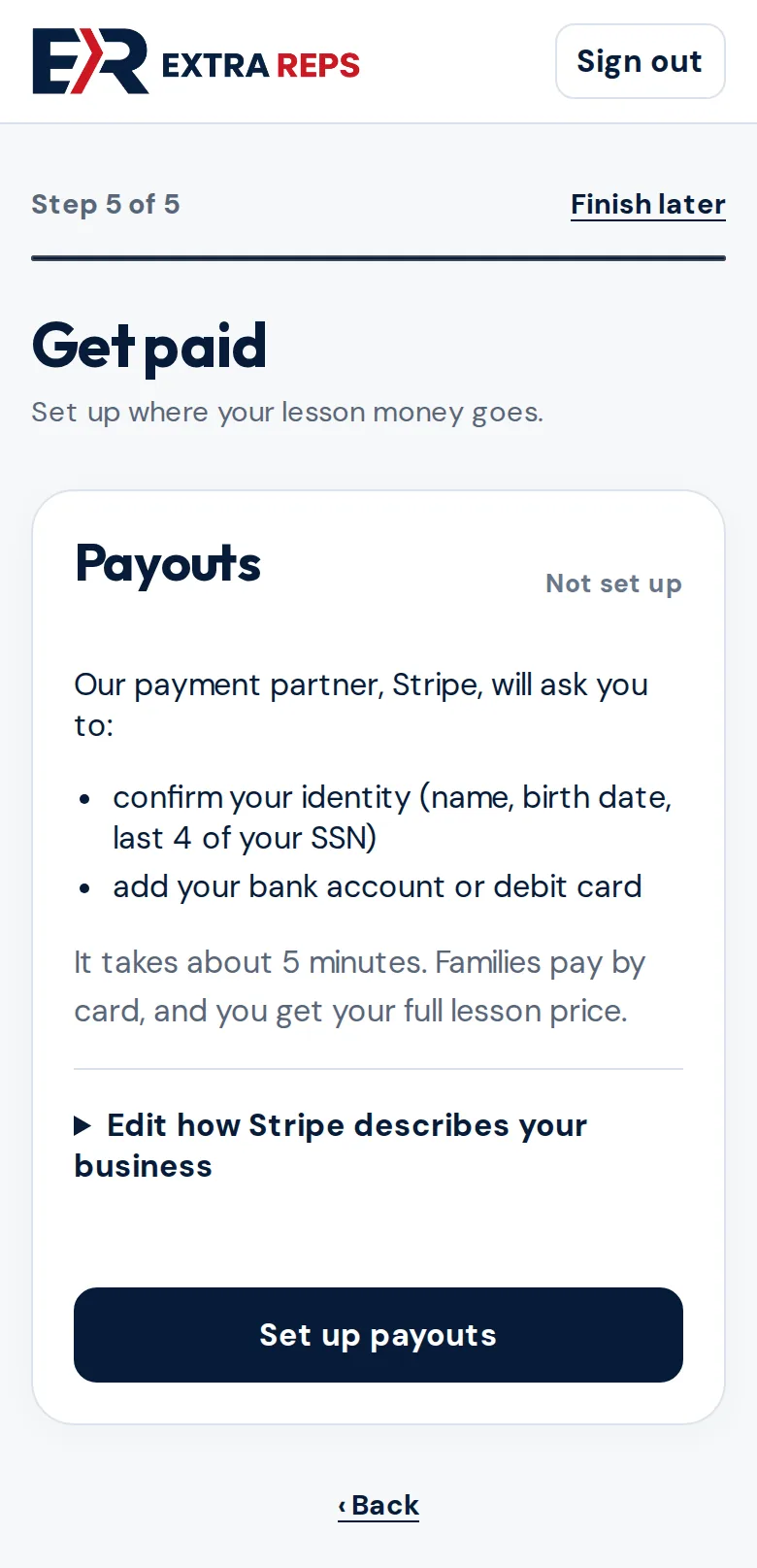
Step 5 of 5: Get paid
Tap Set up payouts. Our payment partner, Stripe, asks you to confirm your identity (name, birth date and the last 4 of your SSN) and add a bank account or debit card. It takes about 5 minutes.
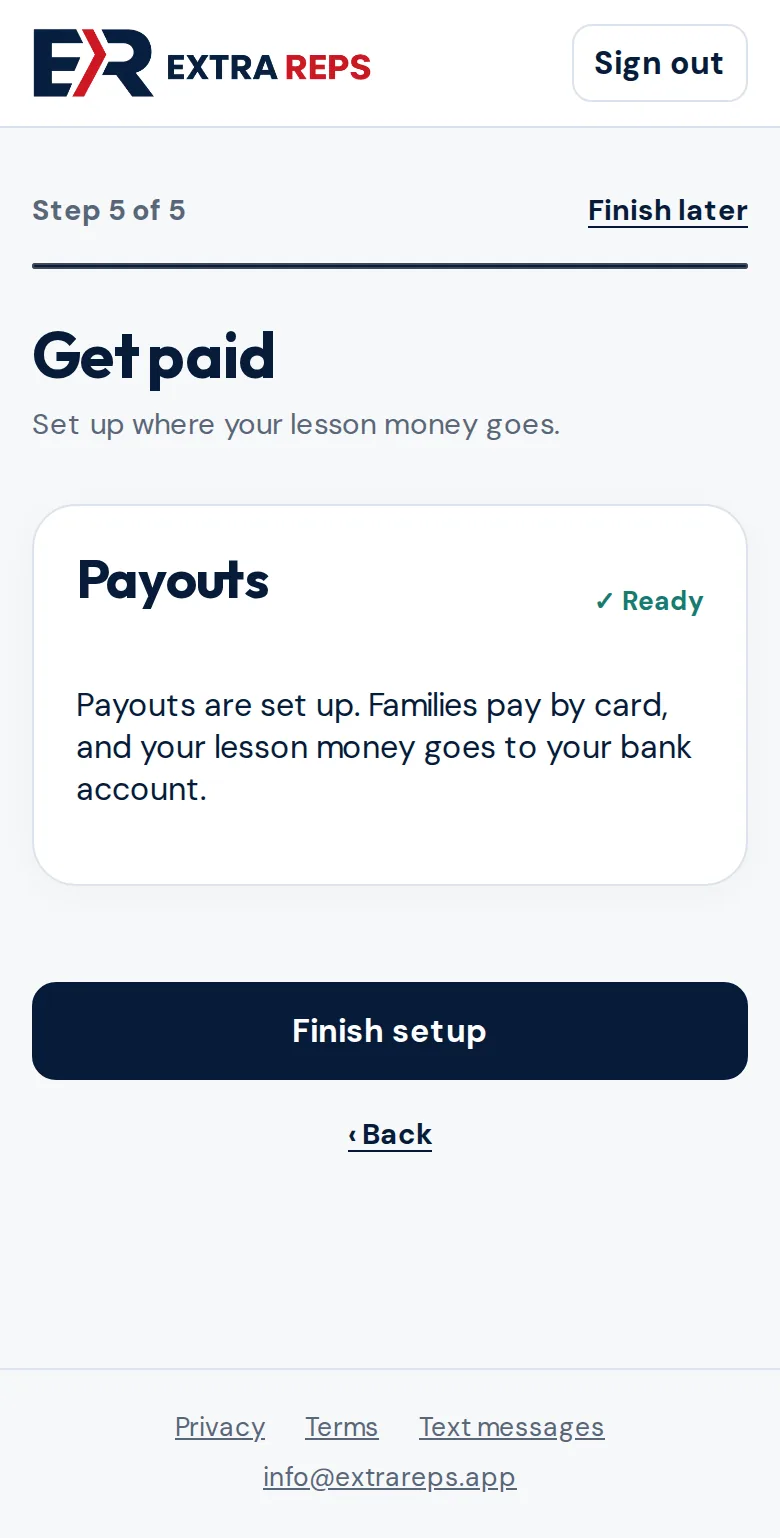
When Payouts shows Ready, tap Finish setup.
Step 9
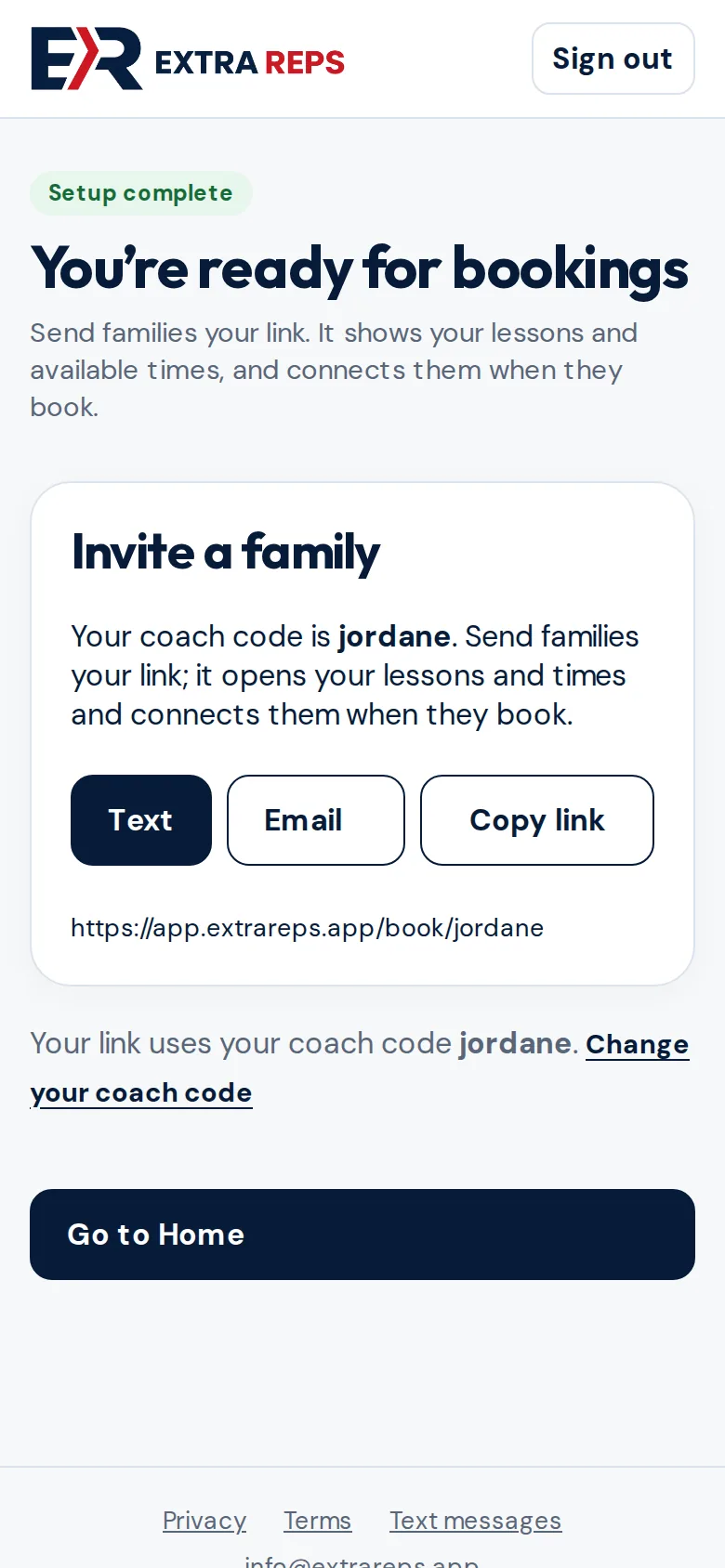
Share your booking link
You’re ready for bookings. Your coach code is part of your booking link, for example app.extrareps.app/book/jordane. Use Text, Email or Copy link to send it to families. It shows your lessons and open times, and connects them to you when they book.
Step 10
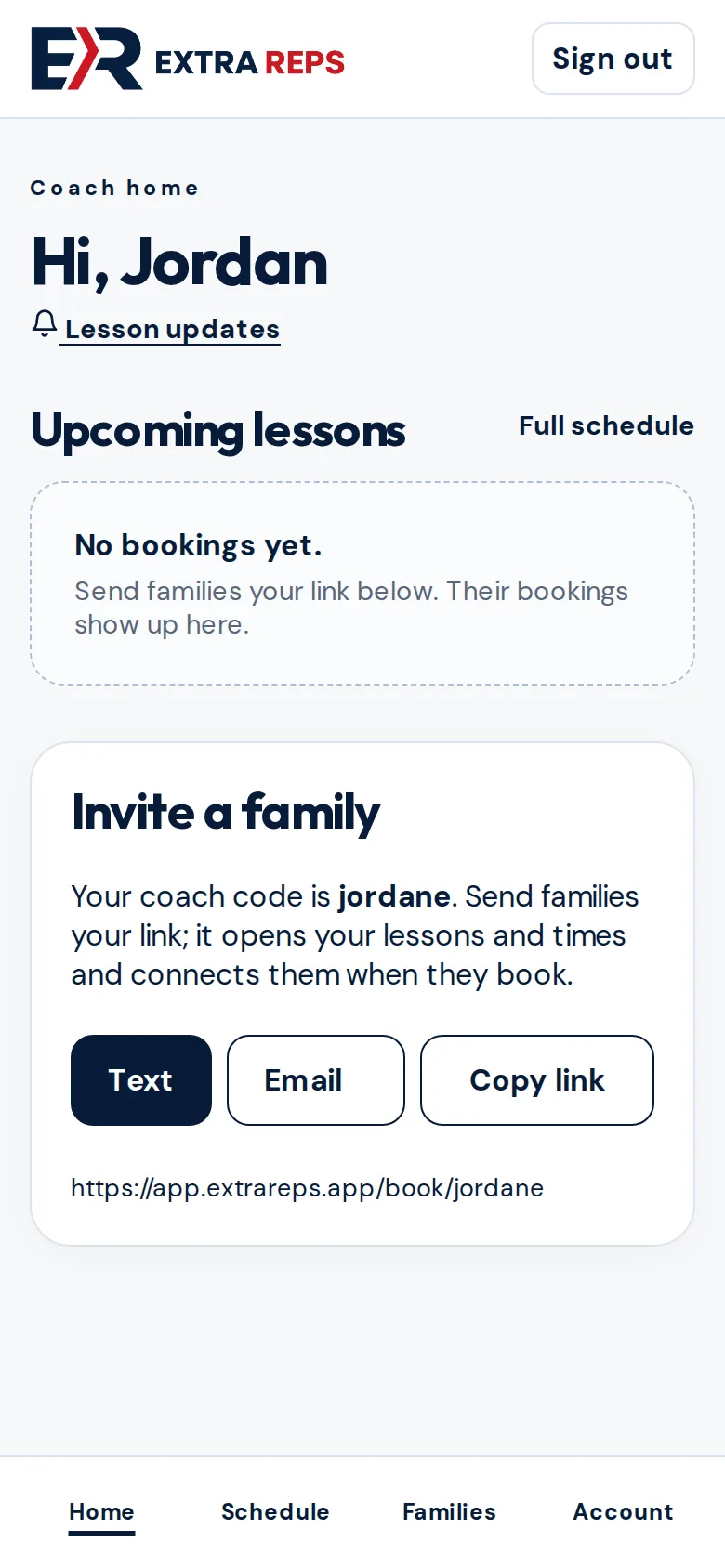
Your coach home
Home shows your upcoming lessons and your invite link. Use the menu at the bottom to move between Home, Schedule, Families and Account.
Questions? Email [email protected].