
Families · Step-by-step guide
Family guide: get started and book
Your coach gives you either a link (by text or email) or a short coach code. Both take you to the same place: your coach’s lessons and open times. Creating an account is free.
Step 1
Open your coach’s link
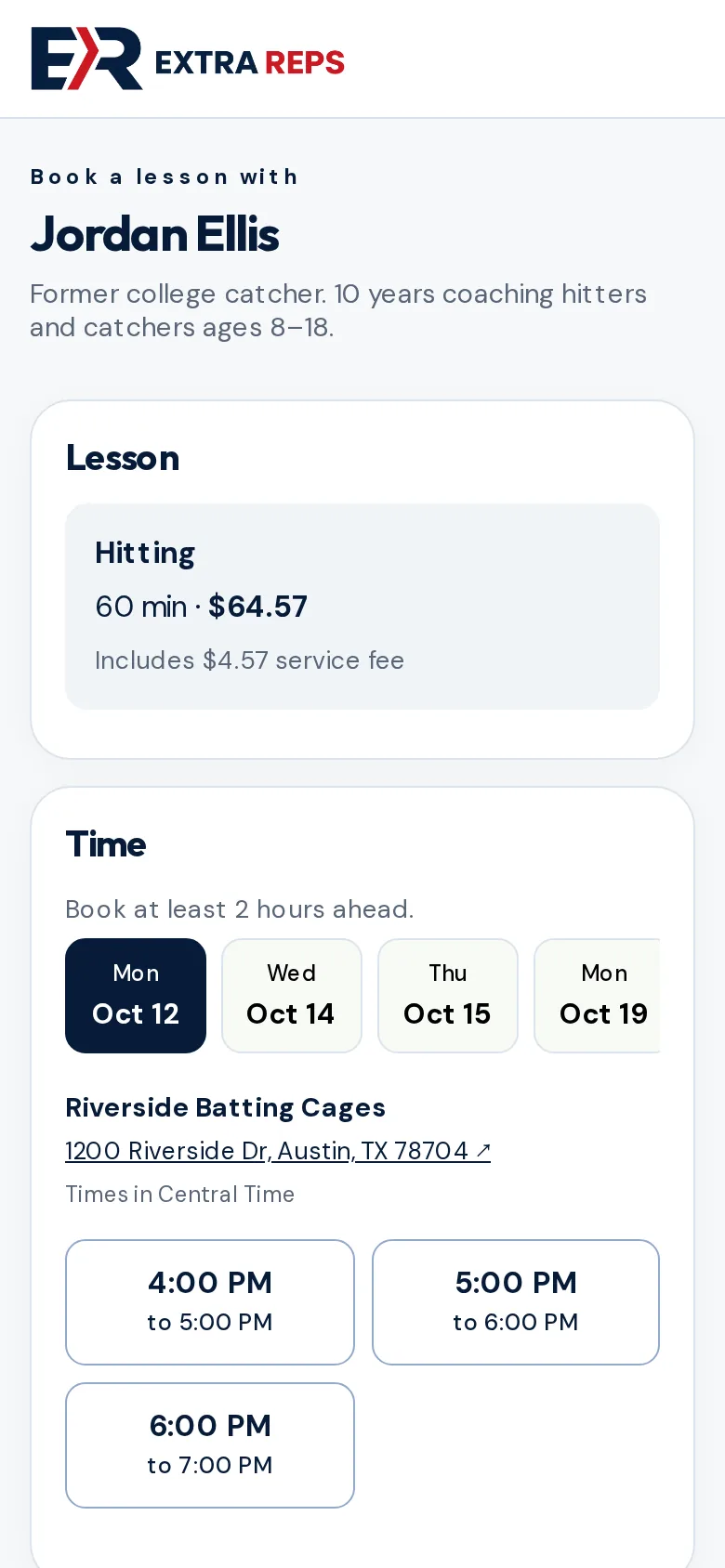
Tap the link your coach sent. You see their lessons, prices (including the service fee) and open times. Choose a lesson if there’s more than one, then pick a day and a time.
Step 2
Create your free family account
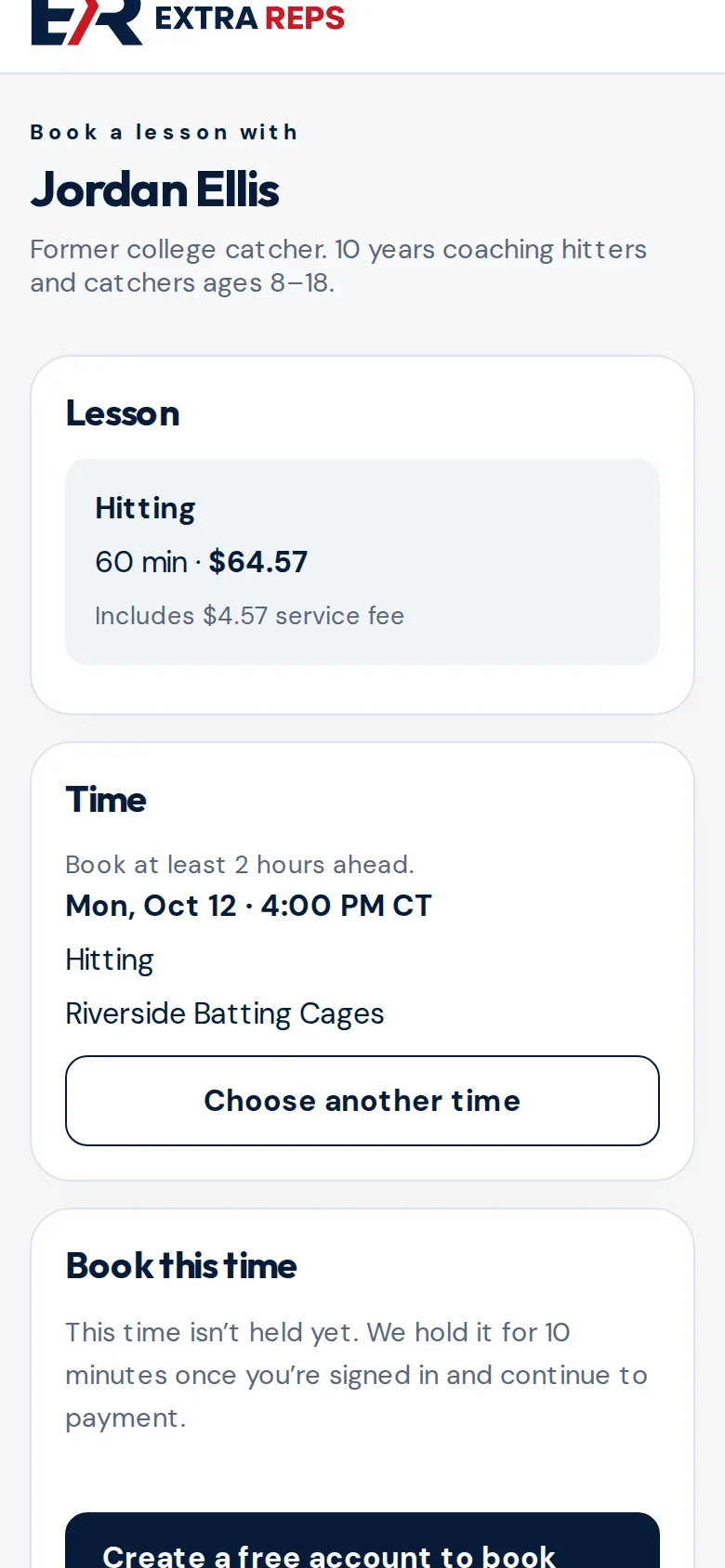
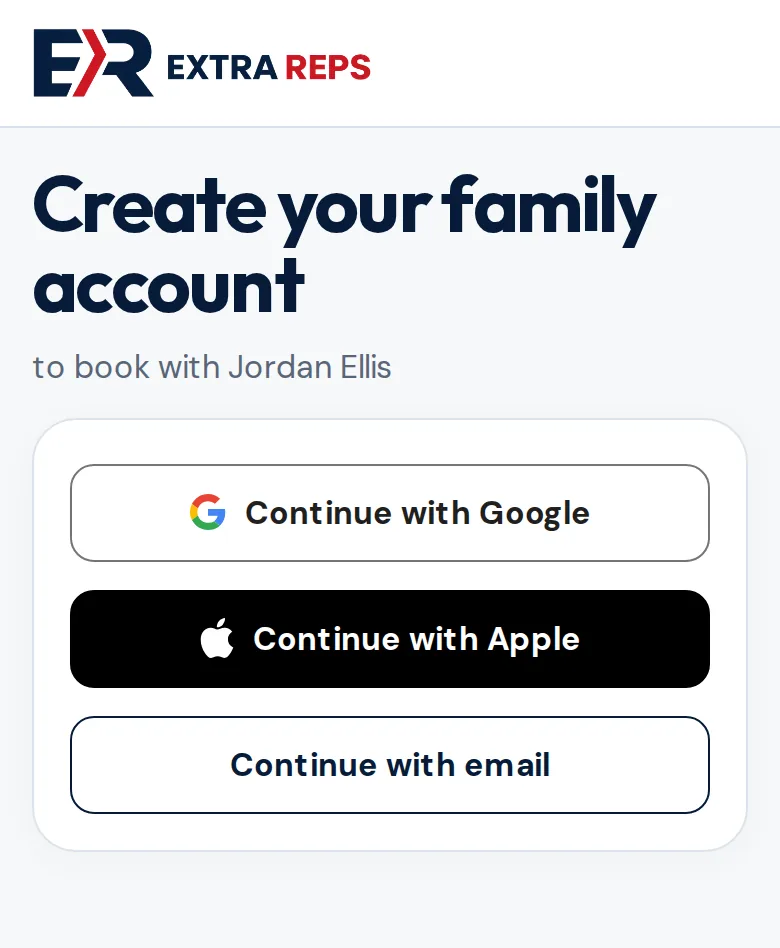
Tap Create a free account to book. Continue with Google or Apple, or with email. Your chosen time is kept while you sign up.
Step 3
Add your details and confirm your email
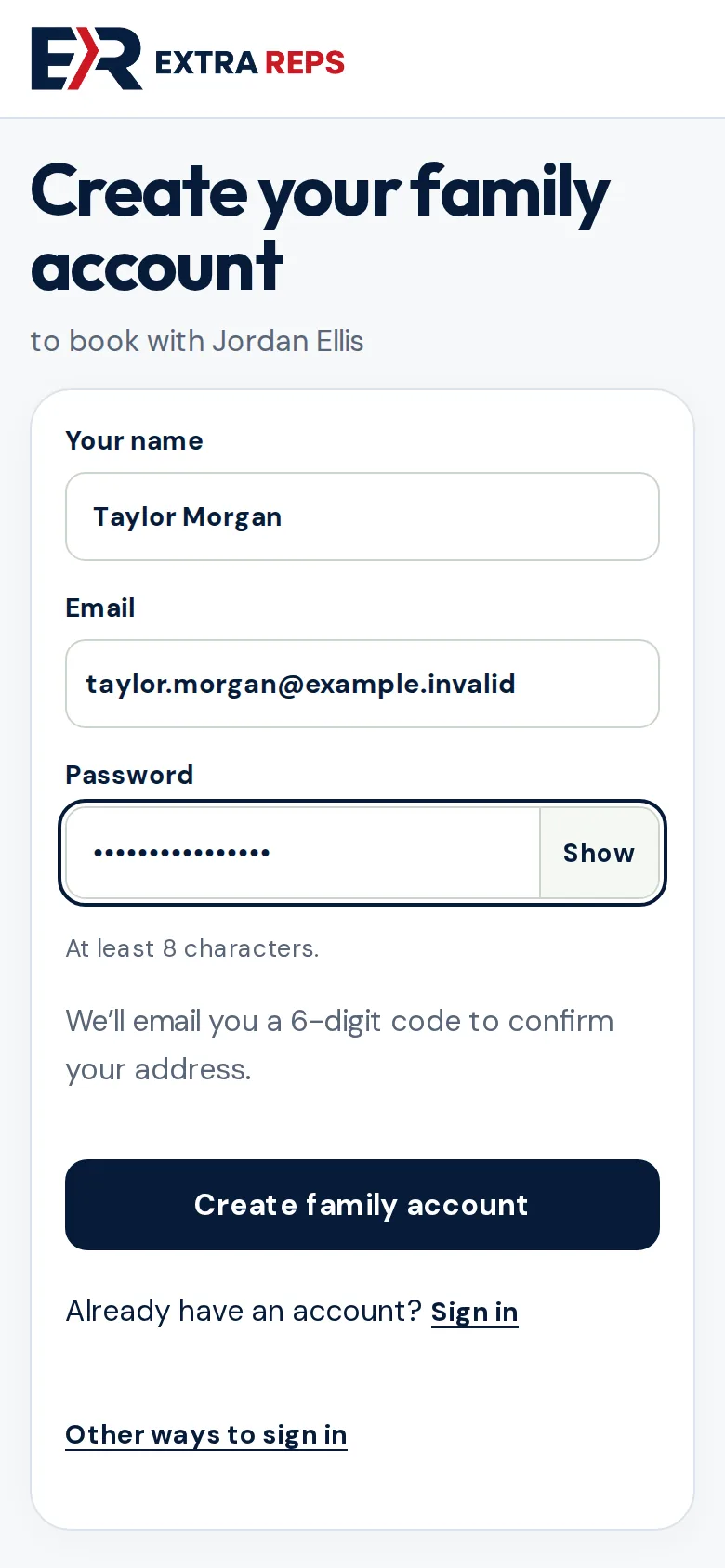
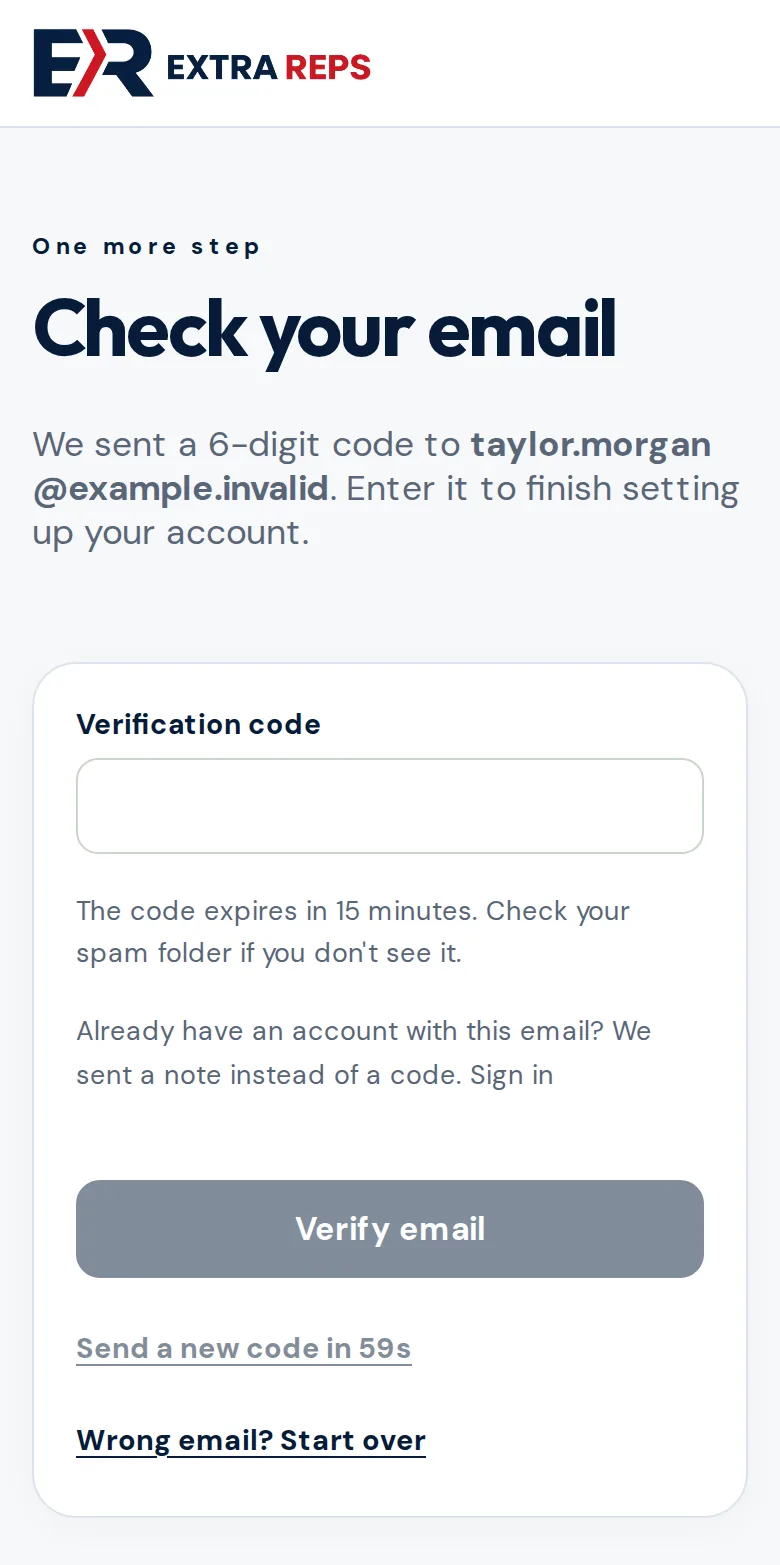
Enter your name, email and a password, then tap Create family account. Enter the 6-digit code we email you and tap Verify email.
Step 4
Who’s the lesson for?
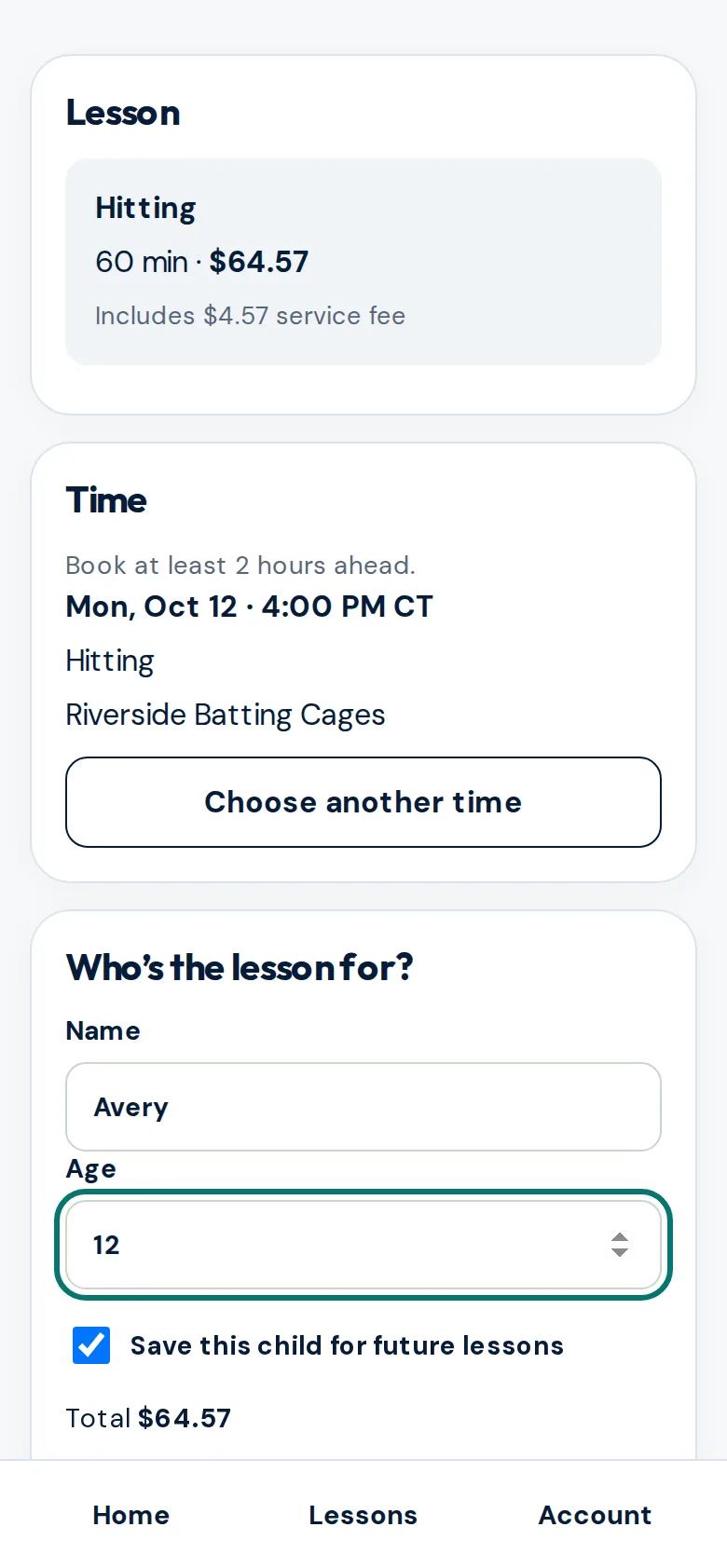
You’re back on your coach’s page with your time chosen. Enter your child’s first name and age, or yourself if the lesson is for you. Leave Save this child for future lessons on so next time is one tap.
For kids under 13 we keep only a first name and age.
Step 5
Review and pay
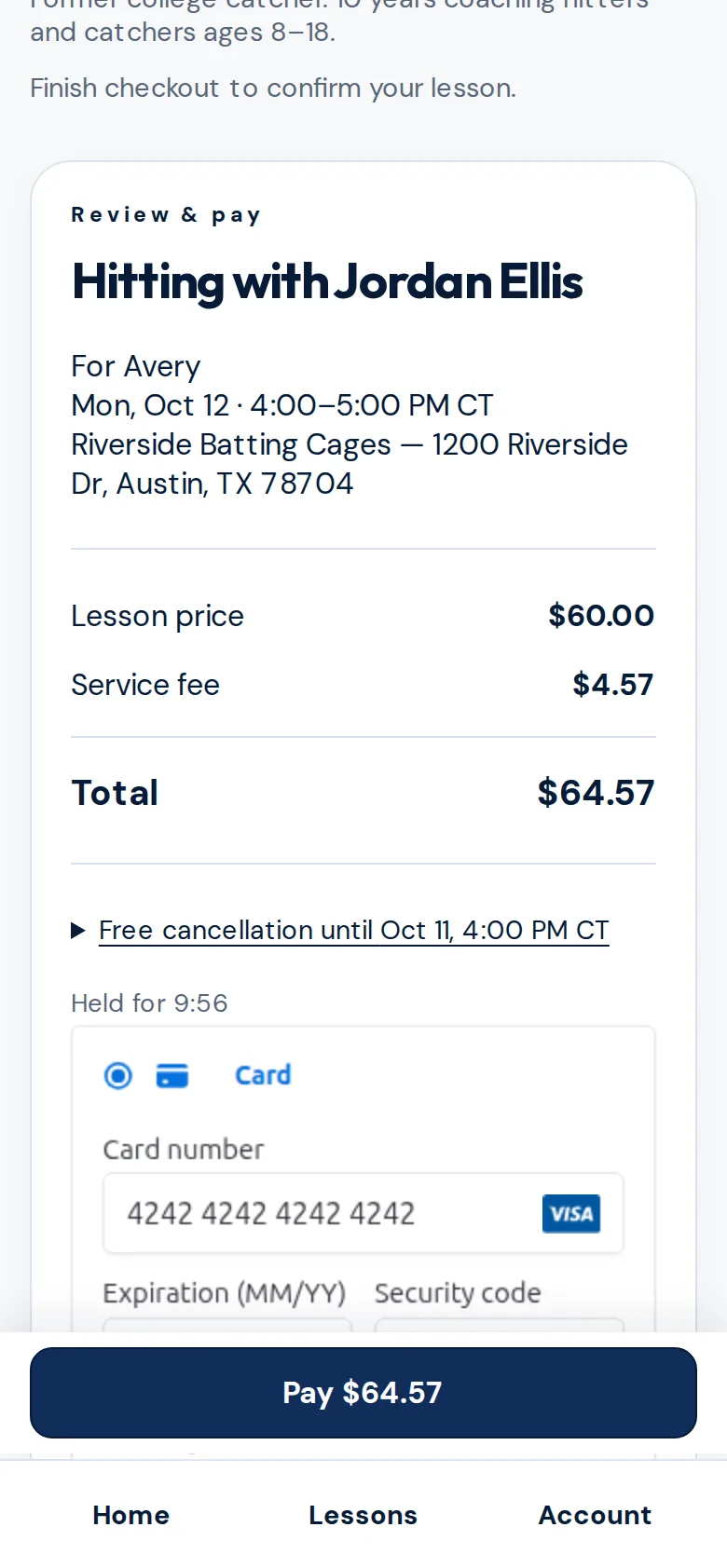
Tap Continue to payment. You see the lesson price, the service fee and the total, plus your coach’s free-cancellation time. Your time is held for 10 minutes while you pay.
Pay by card, Cash App Pay, or Apple Pay or Google Pay in the app. Tap Pay.
Step 6
Your lesson is booked
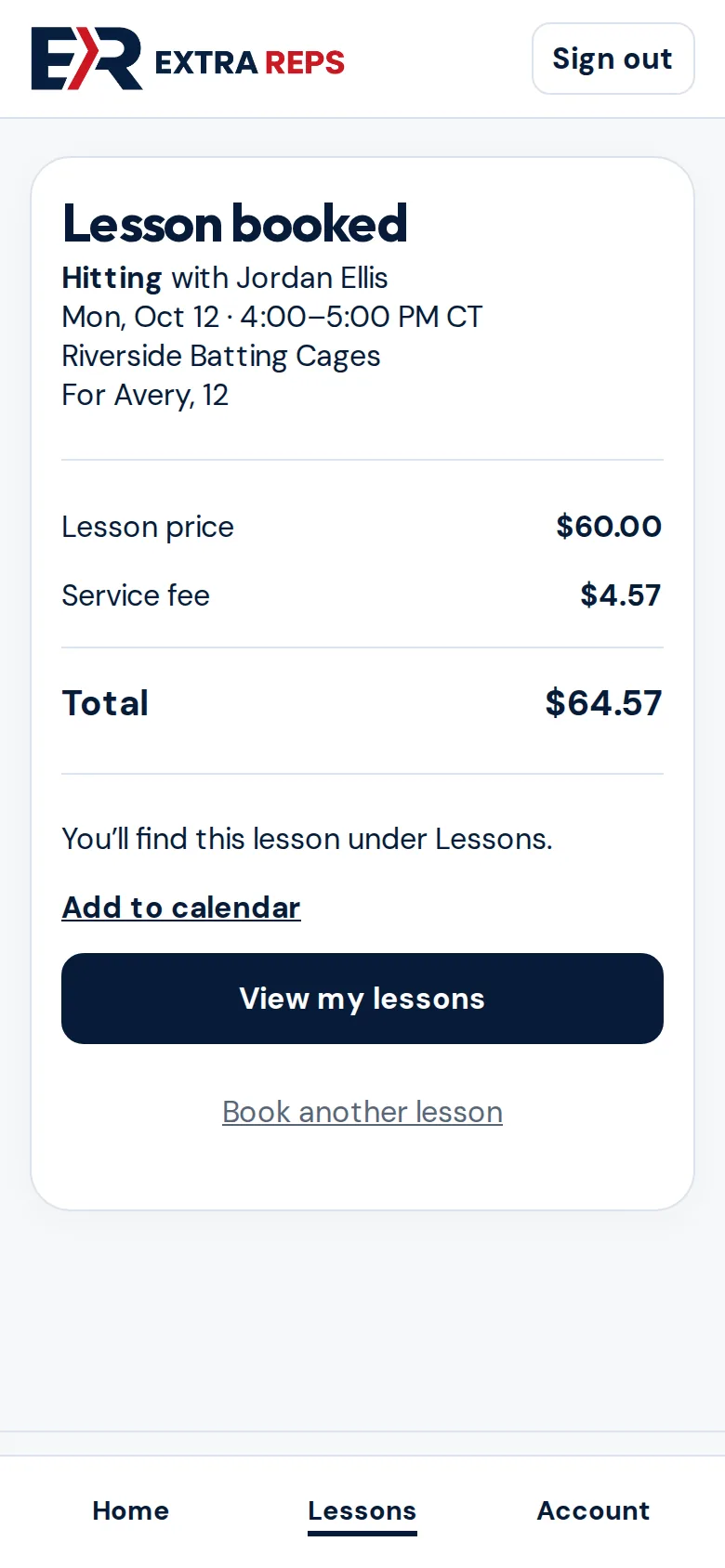
You get a confirmation here and by email. Tap Add to calendar to put it on your phone’s calendar, or View my lessons.
Step 7
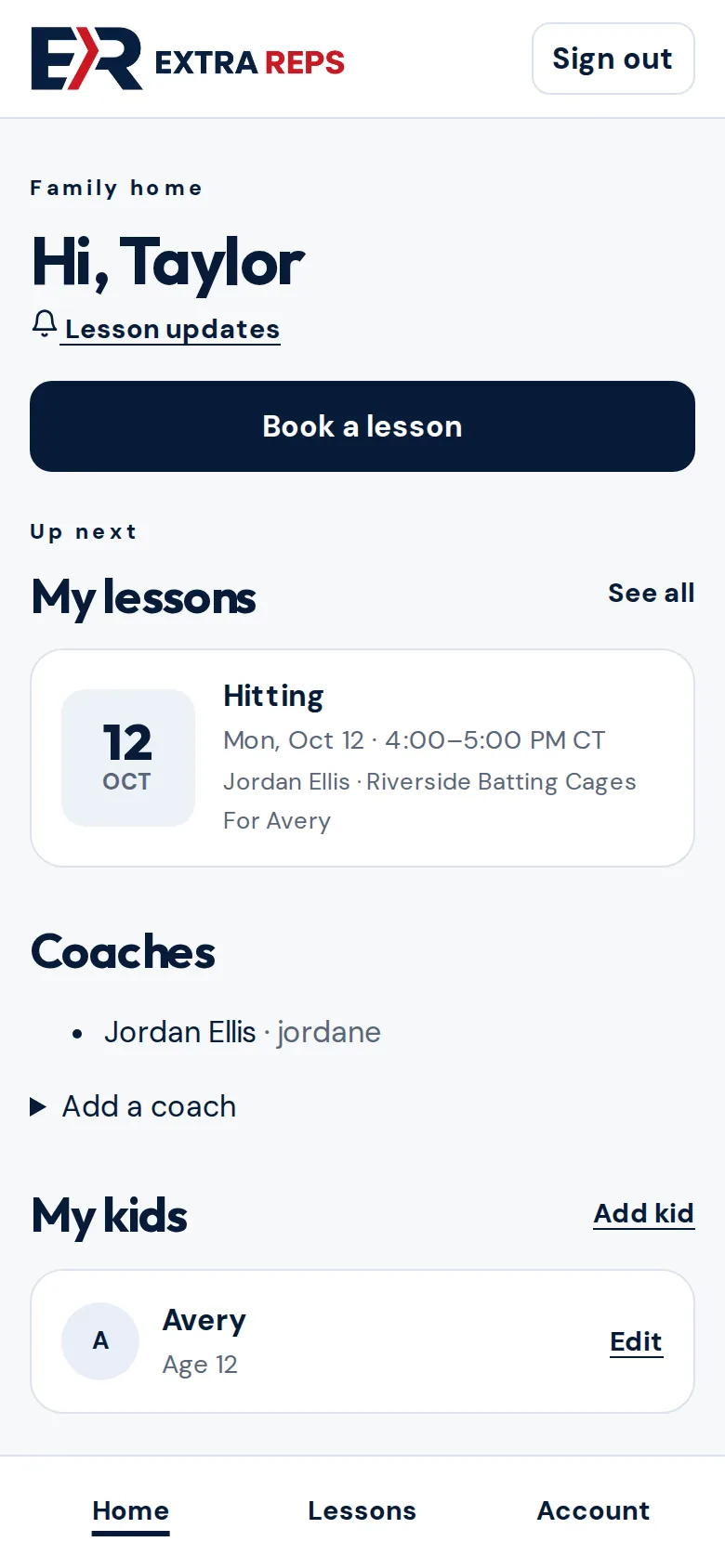
Your family home
Home shows Book a lesson, your upcoming lessons, your coaches and your saved kids.
Next time, see Family guide: book again and manage lessons.
Step 8
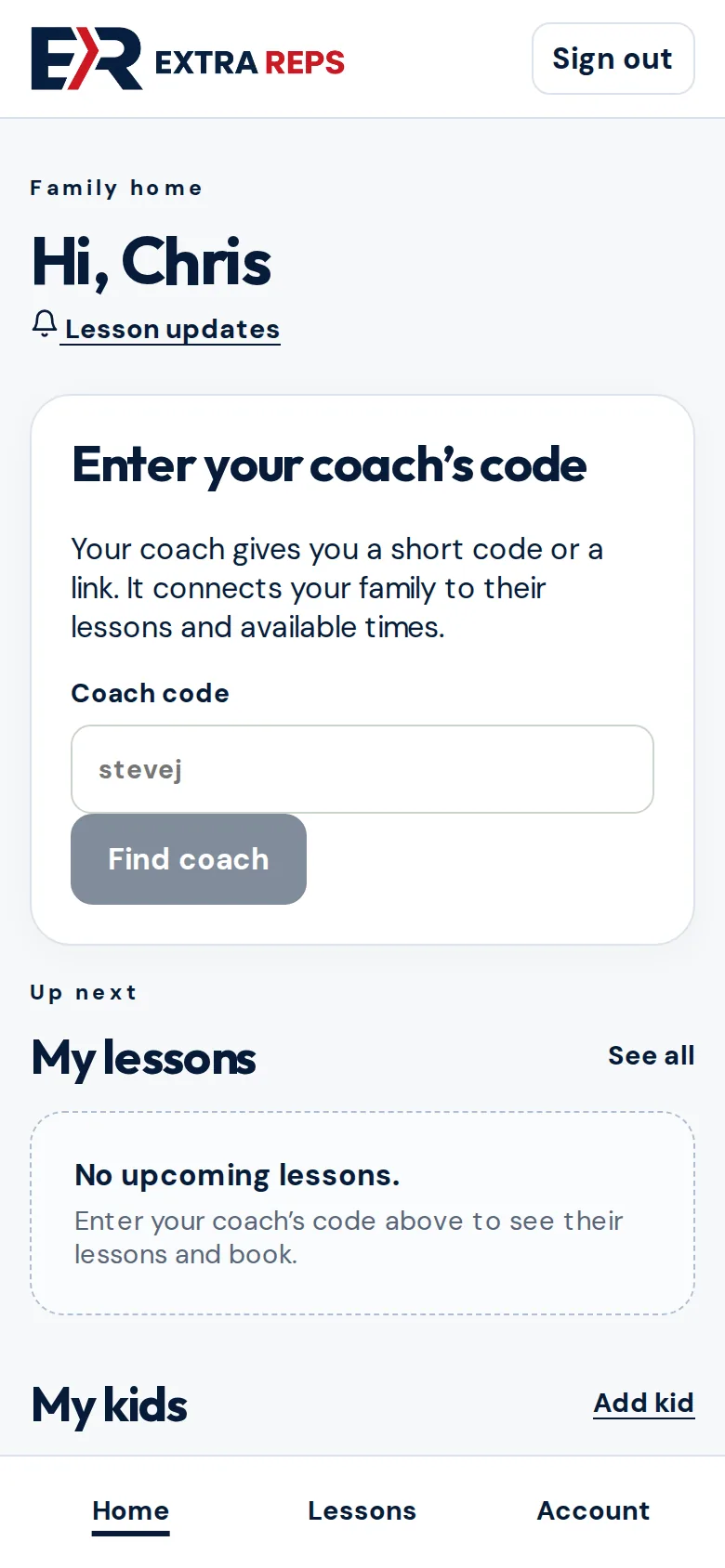
Have a coach code instead of a link?
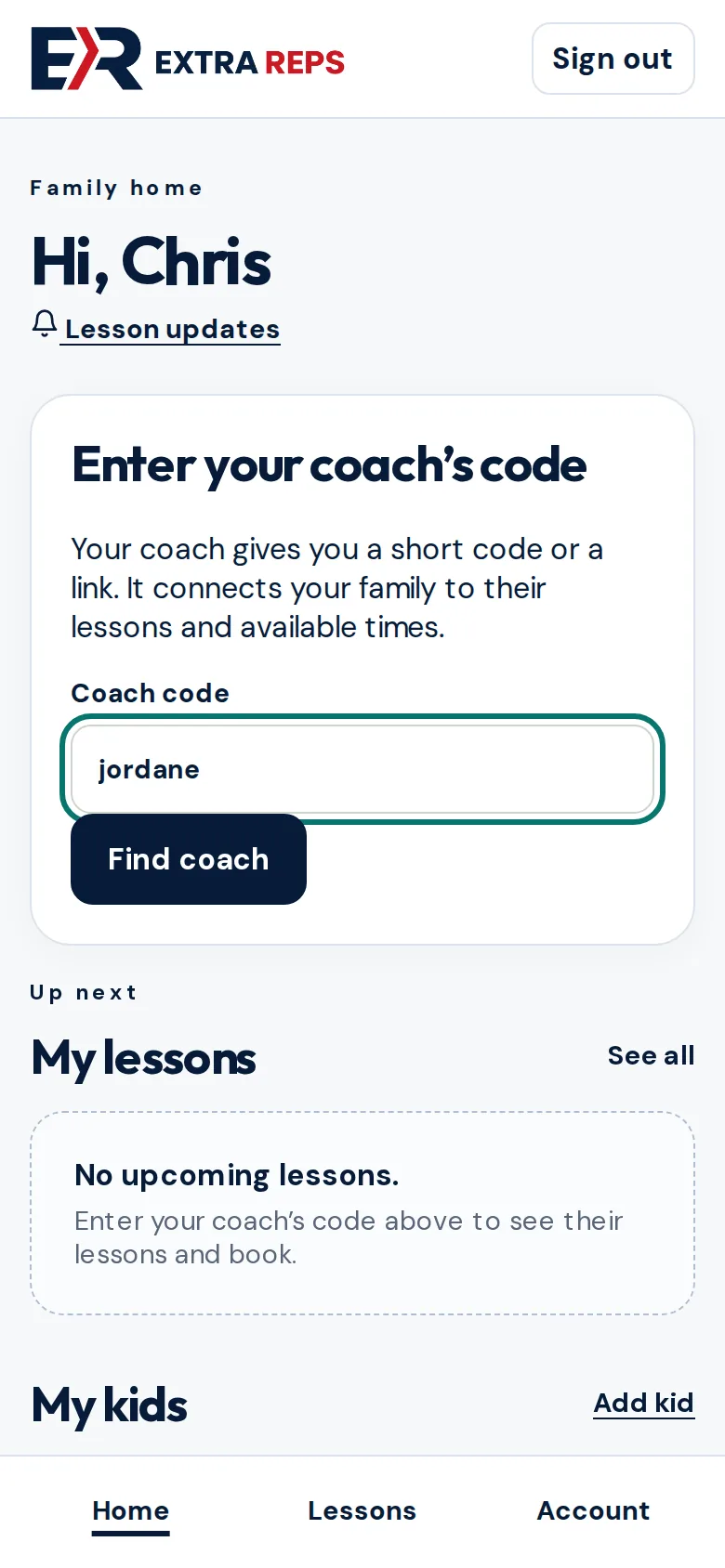
Create your free family account in the app or at app.extrareps.app. On Home, type the code in Enter your coach’s code and tap Find coach. Their booking page opens; continue from “Open your coach’s link” above.
Questions? Email [email protected].